How to Grade OMR Sheets with Your Phone
How to grade OMR sheets with your phone in myTpen Exams. Download the exam package, print the OMR answer sheet, and scan each bubble sheet with your camera.
myTpen Team11 min read
- Exams
- Teaching
- Assessments
- Workflows
The bubble sheets are in a stack on the desk, and the answer key is the page that stays with you. The class has already sat the paper. This guide is how to grade OMR sheets with your phone when those sheets should become scores before you leave the room. myTpen Exams is the workflow for that job. It prints the paper the class sat, reads each sheet with the camera on your phone, and puts the score on the gradebook as you scan.
This is for the teacher doing that work herself, including the many women who mark the class test after the school day is already over.
OMR bubble sheets for the test in the room#
myTpen Exams manages every type of assessment: online, in-class, and hybrid. The hybrid path is the handwritten document exam, in How to Conduct a Descriptive Exam Online. An MCQ exam has two paths. Auto-marking is the online path, when students open a link and the score arrives as they submit. That path is How to Create an Online MCQ Exam. OMR bubble-sheet evaluation is the in-class path, when the class sits a paper test and you grade the sheets with the myTpen OMR Scanner app. This guide is that second path.
You start from an MCQ exam already on the Available Exams list. Make it with the online guide, then use this guide for the paper sitting. The in-class test prints that same exam as a question paper and an answer sheet.
myTpen is where we build academic workflows for teachers. We built workflows, not apps. myTpen is The EdTech Operating System. Exams is the workflow for the afternoon the class sits the paper and the evening the sheets come back.
Create a free account and open myTpen Exams with that exam in front of you. The other guides are in the Knowledge Hub.
How to grade OMR sheets with your phone#
Watch it once, then grade the stack from the class you just taught.
- Open the MCQ exam you already created. How to Create an Online MCQ Exam is how that exam gets made. On the Available Exams list, click Share Exam.
- The Exam Started! window opens. Click Download Exam Package. myTpen generates a PDF with the question paper, the OMR answer sheet, and the answer key.
- Print the question paper and the OMR answer sheet, and give those pages to the students. Keep the answer key. It is marked CONFIDENTIAL - FOR EXAMINER USE ONLY.
- Students fill in the sheets and hand them in for evaluation.
- In myTpen Exams, click the profile icon and choose Link a device. The Link your device with myTpen Exams page shows a QR code. Download the myTpen OMR Scanner app from Google Play. In the app, tap Scan QR code to Login, and scan the QR code.
- Point the phone camera at a filled OMR sheet until the page sits inside Position document in frame. The app detects the sheet and captures it. While it reads, the app shows Scanning... hold steady.
- Exam Result shows the handwritten Student Name, Student ID, Email Address, and Department, read into digital text, and the calculated score. Tap Save And Continue. The next sheet is ready.
- Each saved result appears on the Submissions page, with the name, the ID, the department, the email, and the score as the marks over the total. Export to Excel downloads all the student data.
A printable OMR answer sheet#
A printable OMR answer sheet comes out of the exam you already wrote. Click Share Exam on the Available Exams list. In the Exam Started! window, click Download Exam Package. The PDF is the set of pages for the room.
Three pieces sit in that file. The question paper is what the class reads. The OMR answer sheet is the page they mark. The answer key is the page you keep for the evaluation.
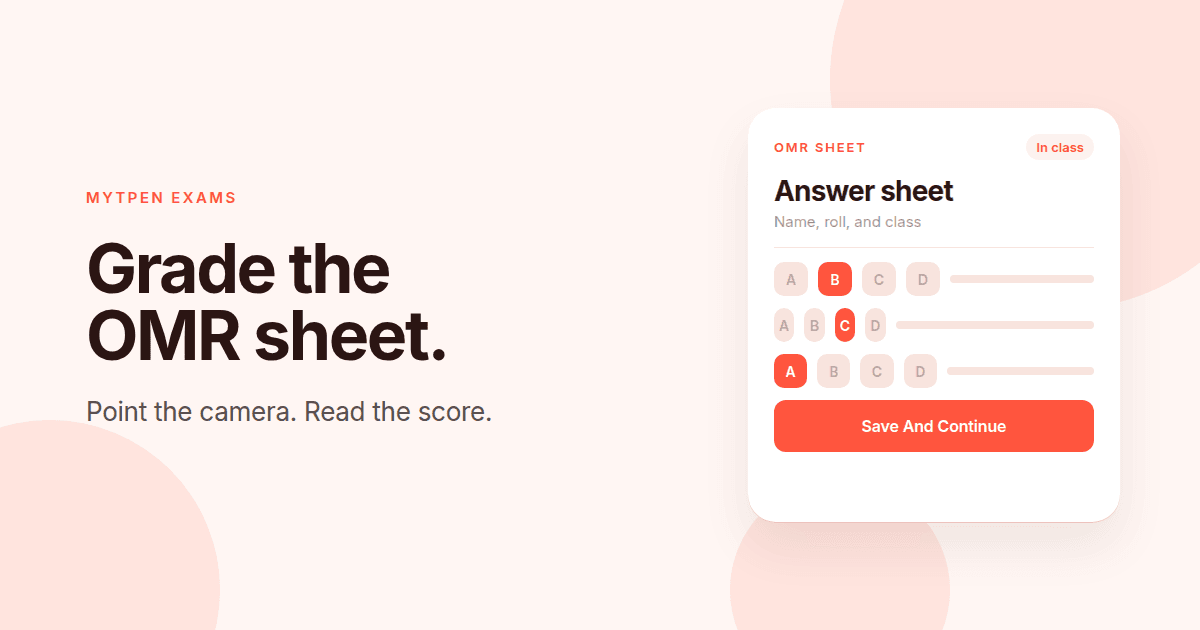
The OMR answer sheet has fields at the top for Student Name, Roll Number, Department, and Email Address. Each question has bubbles for A, B, C, and D, and the sheet includes instructions for how to fill it. Print a question paper and an answer sheet for each student, and hand the pair out together.
The answer key in the same package is marked CONFIDENTIAL - FOR EXAMINER USE ONLY. Keep that page with you. Students sit the question paper and the answer sheet, then hand the filled sheets in for evaluation.
How to conduct an in-class MCQ test#
How to conduct an in-class MCQ test is the hour between the printed package and the stack you scan.
Before the period, click Download Exam Package, print the question paper and the OMR answer sheet, and set the answer key aside. Give each student both pages. Ask her to complete Student Name, Roll Number, Department, and Email Address before she fills a bubble. A clear hand there is the name and the ID Exam Result will show.
The bubbles are A, B, C, and D for each question. Read the instructions on the sheet with the class when this is the first paper they have marked this way, then let them work. The answer key stays with you.
Collect the sheets when the period ends. The answer sheets are the pile you grade.
The same exam can run online instead. How to Create an Online MCQ Exam is that path, with a link the student opens and a score that arrives when she submits.
An OMR scanner app for teachers#
An OMR scanner app for teachers is the phone you already carry, linked to the exam you already published. The myTpen OMR Scanner app is on Google Play. Linking the phone ties that camera to your myTpen Exams account, so each score lands on this exam.
In myTpen Exams, click the profile icon and choose Link a device. The Link your device with myTpen Exams page shows a QR code. Download the myTpen OMR Scanner app from Google Play. Open the app and tap Scan QR code to Login. Point the camera at the QR code. The phone and the account are then linked, and the sheets you collected are ready to grade.
Link the phone before you pick up the first sheet. The QR code stays on the computer. The camera is in your hand. After that scan of the code, the rest of the work is the answer sheets.
Grade bubble sheets with your phone camera#
You grade bubble sheets with a phone camera one sheet at a time, from the top of the pile.
Open the myTpen OMR Scanner app and point the camera at a filled OMR sheet. Bring the whole page inside Position document in frame and hold the phone steady. The app detects the sheet and captures it on its own. While the read is in progress, the app shows Scanning... hold steady. The capture happens with the camera already open. There is no shutter button to tap.
Exam Result opens when the sheet has been read. It shows the handwritten Student Name, Student ID, Email Address, and Department as digital text, and the calculated score. The Roll Number on the sheet is the Student ID on that result.
Tap Save And Continue. The app moves straight to the next sheet. Scores are calculated as you scan, so the score is recorded as you save the sheet.
An OMR sheet checker app#
An OMR sheet checker app is finished when the score is somewhere you can keep. In myTpen, that place is the Submissions page for the exam. Each time you tap Save And Continue, the result appears there. The rows arrive one by one, in the order you scanned.
A row shows the name, the ID, the department, the email, and the score as the marks over the total. The camera read the details from the handwriting. The score is the one Exam Result calculated.
Export to Excel downloads all the student data. That workbook is the gradebook you take into the report card a parent should receive.
From online to offline tests, everything is automated.
Where the paper sits with the other workflows#
The in-class MCQ is the paper the class sits in the room. The other workflows are a different moment in the same week.
Data Extract copies a past question paper so the MCQ exam can be created from it. How to Create an Online MCQ Exam is that exam when the class should take it from a link. Report Card sends a card to the parent. Notice Board announces that the results are out. Lessons narrates a topic. Board keeps the lesson on pages. Survey collects a reply. Answers works a question from a photo.
Grade the sheets when the class has handed them in. More writing for teachers is in the Knowledge Hub. Account questions are on the FAQ, and support is there if a step blocks you.
Where it fits in your workflow#
The in-class paper is one pass through the week. The gradebook is what the rest of the week uses.
- Data Extract copies the text from a past question paper.
- Exams creates an MCQ exam.
- Download the exam package and print the OMR sheets.
- The myTpen OMR Scanner app grades each sheet.
- Export the gradebook as Excel.
- Report Card imports the grades and sends the report cards to parents on WhatsApp.
- Notice Board announces the results.
The Excel gradebook is the file you carry forward. That is assessment in The EdTech Operating System.
Frequently asked questions#
How do you grade OMR sheets with your phone?#
Click Share Exam, then Download Exam Package. Print the question paper and the OMR answer sheet, and keep the answer key. Link your phone with Link a device, then scan each filled sheet in the myTpen OMR Scanner app. Tap Save And Continue on Exam Result. Scores appear on Submissions, and Export to Excel downloads them.
What is an OMR sheet checker app?#
It reads a filled bubble sheet and records the score. The myTpen OMR Scanner app does that with the phone camera after you link the phone to myTpen Exams. Each saved row on Submissions shows the name, the ID, the department, the email, and the score as the marks over the total.
How do you grade bubble sheets with a phone camera?#
Place the filled sheet inside Position document in frame. The app detects the page and captures it while you hold steady. Scanning... hold steady appears while it reads, and there is no shutter button. Exam Result shows the handwritten details as digital text and the calculated score. Tap Save And Continue for the next sheet.
Where do you get an OMR scanner app for teachers?#
Download the myTpen OMR Scanner app from Google Play. In myTpen Exams, click the profile icon and choose Link a device. Scan the QR code on the Link your device with myTpen Exams page by tapping Scan QR code to Login in the app.
How do you conduct an in-class MCQ test?#
Click Share Exam, then Download Exam Package. Print the question paper and the OMR answer sheet, and keep the answer key marked CONFIDENTIAL - FOR EXAMINER USE ONLY. Students fill Student Name, Roll Number, Department, and Email Address, mark the A, B, C, and D bubbles, and hand the sheets in.
How do you get a printable OMR answer sheet?#
Click Download Exam Package in the Exam Started! window. The PDF includes the question paper, the OMR answer sheet, and the answer key. The sheet has the student fields, A, B, C, and D bubbles, and instructions. Print it for the class and keep the answer key.
Where does the in-class MCQ exam sit in the week?#
In-Class Assessment runs from Data Extract to the MCQ exam, the printed OMR sheets, the myTpen OMR Scanner app, the Excel gradebook, Report Card on WhatsApp, and Notice Board. The same exam can run online from a shared link.
What we mean by a mighty teacher#
The mission is to make teachers mighty again. You're not average anymore. You're a mighty teacher. Mighty, here, is practical. The package prints from the exam you already made, the phone reads each sheet, and the score is on Submissions before the stack is finished.
We built workflows, not apps. You print the paper, scan the sheets, and teach. myTpen is backed by Google and partnered with Coursera. The class stays yours, and so does the paper the student sat.
Become mighty again.
Grade the stack from the class you just taught#
Pick up the sheets from the period that just ended. Open myTpen Exams. Click Share Exam, then Download Exam Package. Print the question paper and the OMR answer sheet, keep the answer key, and link your phone. Point the camera, tap Save And Continue through the pile, and click Export to Excel when the last sheet is saved.
Create a free account
Open myTpen and start with the workflow you need before the next class.
Create a free account