How to Share School Notices with Parents
How to share school notices with parents on myTpen Notice Board. Write the notice, make it public, tag it, and copy a link anyone can open without logging in.
myTpen Team11 min read
- Notice Board
- Teaching
- Parents
- Workflows
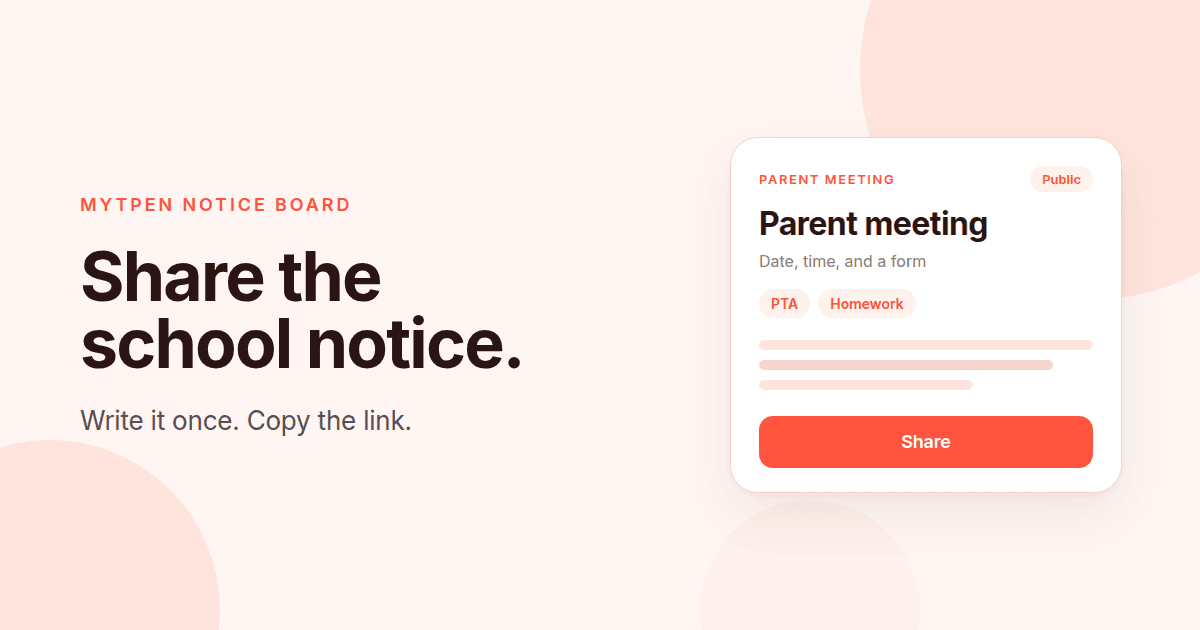
This is how to share school notices with parents when the update should live in one place, and a family should open it from a link. The meeting time changed, and the message is already buried in a chat. A parent asks again at the gate. myTpen Notice Board is the workflow for that job. It is one central hub where teachers and schools organize and broadcast updates, notes, tasks, and announcements. No more scattered messages or missed updates.
This is for the teacher doing that work herself, including the many women who write the class update after the school day is already over.
An online notice board for teachers#
An online notice board for teachers keeps the year's updates in one list you can open again. The sidebar has four places. Notices is your list of notices, with tags and dates, and the list is paginated. + Create starts a new notice. Bookmarks holds the notices you want to return to. Ask AI answers a question from the notices you have already saved.
myTpen is where we build academic workflows for teachers. We built workflows, not apps. myTpen is The EdTech Operating System. Notice Board is one of the Educator Bundle tools, for the evening a class still needs the note, the date, or the reminder.
Create a free account and open myTpen Notice Board with the update in front of you. The other guides in the Knowledge Hub cover a question paper, a scanned test, a narrated lesson, a worked key, a board, a survey, and a report card.
How to share school notices with parents#
Watch it once, then write the notice the parents still need.
- Create a free account if you are new here. Open myTpen Notice Board. Click + Create. Enter a title, then the body. The body can include a YouTube link, a Google Form link, or any other relevant information. Click Save.
- The notice is private by default. Turn on the Public toggle when families should read it. Add up to 5 tags, with up to 20 characters on each tag.
- The notice opens on its own page. Click Share. The magic link is copied to your clipboard. Paste it into the parents' WhatsApp group or the class chat. Anyone can open the link and view the notice without logging in.
- Open Ask AI when you need something you saved earlier. Ask in plain language. "Is there any information related to school fees?" finds the answer in your past notices and pulls out the key details.
Write the notice#
- Create asks for a title, then a body. The title is the line a parent reads before she decides the link is for her. "Parent-teacher meeting", "Homework for Thursday", and "Term fee reminder" each tell her why the message arrived.
The body holds the rest. Write the time, the place, and the action in sentences she can read on a phone. A YouTube link belongs in the body when the class should watch a short explanation. A Google Form link belongs there when you need something back, such as a meeting slot or a permission. Any other relevant information belongs there too: the chapter, the room, what to bring, or the decision the last meeting made.
Click Save. The notice opens on its own page. That page is what Share hands to a parent. A class announcement is this page: one title, one body, and one link.
Make it public and tag it#
Notices are private by default. A Public toggle makes a notice public. Turn it on when the notice is the one families, the class, or the school should read. Add the tags before the link goes out, so the list is already sorted when you come back.
You can add up to 5 tags on a notice, and each tag can be up to 20 characters. Short labels are the ones you will still recognize in June. PTA, Homework, Fees, Exams, Events, and Minutes all fit.
The Notices list shows those tags beside the dates, and the list is paginated. The tag tells you the kind of notice before you open it. Use the same labels all year, so Homework stays Homework when the pages add up.
Share the link parents can open#
On the notice page, Share copies a magic link to your clipboard. Anyone can open that link and view the notice without logging in. Paste it where the class already reads messages. The parents' WhatsApp group is the usual place. The class chat is the other. Beside the link, one line is enough: what the notice is, and that the details are on it.
Bookmark adds the notice to your Bookmarks. Use it for the one you will send again: the meeting agenda, the fee reminder, the exam schedule. Bookmarks sits in the sidebar, next to Notices.
The three-dot menu has Edit Notice and Delete Notice. Edit Notice corrects a time, adds the form you forgot, or changes a tag. Share the link again once the page reads the way you want. Delete Notice takes down a notice once the day has passed.
Find a past notice with Ask AI#
Ask AI is how you ask the board a question. You ask in plain language about anything you have saved. It finds the answer in your past notices and pulls out the key details. "Is there any information related to school fees?" is the question a parent asks in the corridor, months after you wrote the reminder. Ask AI looks through what you saved and brings the details back.
It earns its place once you have hundreds of notices. A homework reminder from last term, the exam schedule from before the break, and the minutes from the last meeting are all questions you can ask in the words you would use with a colleague. Bookmark the notice you already know you will open again. Ask when you know the topic and need the detail.
A school announcement board online#
A school announcement board online is this board used for the notices a class repeats. Each class announcement stays after the chat has moved on.
A parent-teacher meeting notice carries the date, the time, and the agenda. Put a Google Form link in the body when parents should choose a slot. Tag it PTA. After the meeting, write a second notice with the minutes, the action items, and the next steps, and tag that one Minutes.
A homework reminder names the work and the day it is due. Tag it Homework. A fee reminder says what is due and where the family completes it. Write that detail in the body, and tag it Fees.
An exam schedule names the week and the order of the papers. Tag it Exams. An event announcement names the day, the place, and what students should bring or wear. Tag it Events.
The digital notice board for school is that set of notices, tagged and dated, written by the teacher who sends them.
Where Notice Board sits with the other workflows#
Notice Board is the page you send when people should all read the same update. The other workflows are a different moment in the same week.
Lessons narrates a topic. Board keeps the lesson on pages. Survey collects a reply. Report Card sends a card to the parent. Data Extract copies a past question paper. Grading marks a scanned test. Answers works a question from a photo.
Send the notice when the update is ready and more than one person should have it. More writing for teachers is in the Knowledge Hub. Account questions are on the FAQ, and support is there if a step blocks you.
Where it fits in your workflow#
myTpen Notice Board closes several workflows, and it opens a parents' meeting. The notice reaches the people who were not in the room.
Lesson Teaching ends when the class can open the notes.
- Lessons narrates the lesson.
- Board is where you brainstorm the topic.
- Save the notes to Drive.
- Notice Board broadcasts the lesson notes and the material links.
- Survey collects confirmation that everyone can access the materials and understood the lesson.
In-Class Assessment and Online Assessment both finish with the parent. Report Card sends each card on WhatsApp, and Notice Board announces that the results are out.
In-Class Assessment uses the myTpen mobile app.
- Data Extract copies the text from a past question paper.
- Exams creates an MCQ exam.
- Print the OMR sheets.
- The OMR Scanner app grades each sheet.
- Export the gradebook as Excel.
- Report Card imports the grades and sends the report cards to parents on WhatsApp.
- Notice Board announces the results.
Online Assessment stays on the link you share.
- Exams creates an MCQ exam, and you share the link.
- Students register and submit.
- The exam is auto graded.
- Export the gradebook as Excel.
- Report Card imports the grades.
- Send the report cards to parents on WhatsApp.
- Notice Board announces the results.
A Parents–Teachers Meeting starts on the board and comes back to it.
- Notice Board announces the date, the time, and the agenda.
- Pull the student records from Drive.
- Survey collects the feedback after the meeting.
- Notice Board publishes the minutes, the action items, and the next steps.
Teaching Operations is the board you keep all year. Tags sort the notices. Ask AI searches them.
- Notice Board holds the updates, the notes, the tasks, and the announcements.
- Tags keep a parent-teacher meeting, homework, fees, exams, events, and minutes apart.
- Ask AI answers a plain question from the notices you have saved.
That is Notice Board in The EdTech Operating System.
Frequently asked questions#
How do you share school notices with parents?#
Write the notice in myTpen Notice Board, turn on Public, and click Share. Share copies a magic link to your clipboard. Anyone can open that link and view the notice without logging in. Paste the link into the parents' WhatsApp group or the class chat.
What does an online notice board for teachers include?#
The sidebar has Notices, + Create, Bookmarks, and Ask AI. Notices is your list, with tags and dates, and the list is paginated. Bookmarks keeps the ones you return to. Ask AI answers from the notices you have saved.
How do you write a class announcement?#
Click + Create, enter a title, and write the body. The body can include a YouTube link, a Google Form link, or any other relevant information. Click Save. The notice opens on its own page, ready to share.
When do you turn the Public toggle on?#
Notices are private by default. Turn on the Public toggle when the notice is ready for families, the class, or the school to read. Add up to 5 tags, with up to 20 characters on each, so the list stays organized.
How do you find an old notice?#
Open Ask AI and ask in plain language about anything you have saved. "Is there any information related to school fees?" finds the answer in your past notices and pulls out the key details. Tags, dates, and Bookmarks help you browse. Ask AI is the help once you have hundreds of notices.
What belongs on a school announcement board online?#
Post the notices a class repeats. A parent-teacher meeting notice, a homework reminder, a fee reminder, an exam schedule, an event announcement, and the meeting minutes. Each one gets a title, a body, and up to 5 tags.
Where does Notice Board sit in the week?#
Lesson Teaching runs from Lessons to Board, Drive, Notice Board, and Survey. In-Class Assessment and Online Assessment end with Report Card, WhatsApp to parents, and Notice Board. A Parents–Teachers Meeting starts with a notice and returns to Notice Board for the minutes. Teaching Operations is the board itself, with tags and Ask AI.
What we mean by a mighty teacher#
The mission is to make teachers mighty again. You're not average anymore. You are a mighty teacher. Mighty, here, is practical. The notice has a title, the link opens for anyone you send it to, and the notice you wrote in September is still there when a parent asks in March.
We built workflows, not apps. You write the notice, share the link, and teach. myTpen is backed by Google and partnered with Coursera. The class stays yours, and so does the wording the parent reads.
Become mighty again.
Send the notice the class is waiting for#
Pick the update that is still living in a chat. Open myTpen Notice Board. Click + Create, write the title and the body, turn on Public, add the tags, and click Share. Paste the link where the parents already are.
Create a free account
Open myTpen and start with the workflow you need before the next class.
Create a free account