How to Send Report Cards to Parents on WhatsApp
Send report cards to parents on WhatsApp with myTpen Report Card. Upload an Excel template, generate each card with remarks, and deliver it to the parent.
myTpen Team11 min read
- Report Card
- Teaching
- Parents
- Workflows
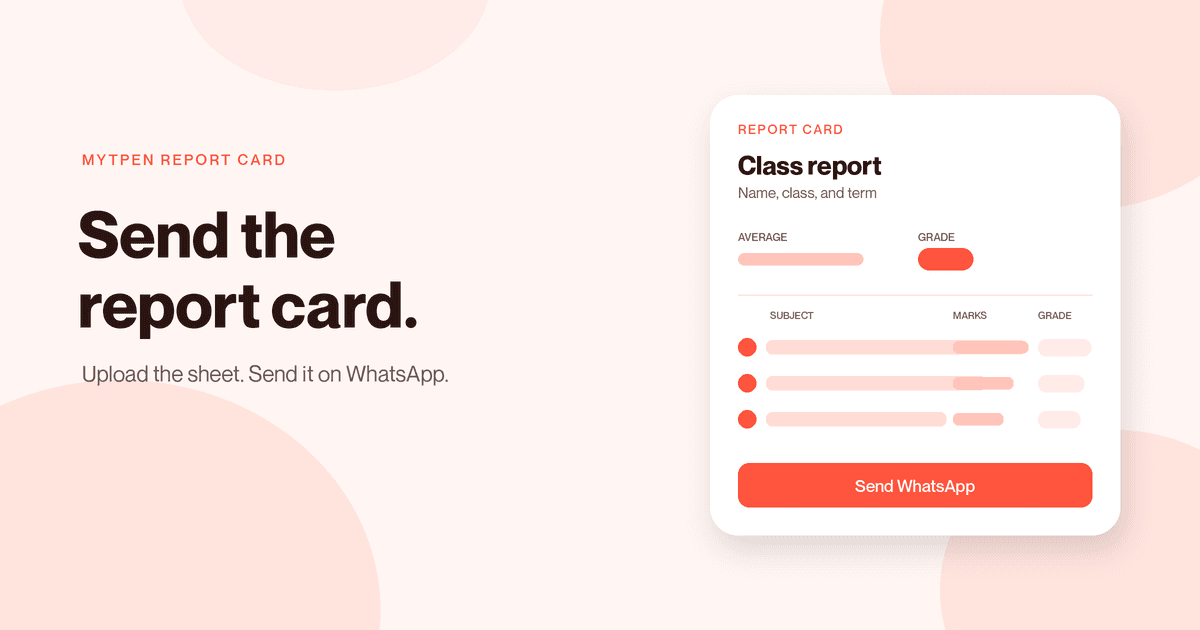
The marks are in, and the remarks are still the part that takes the night. Then you are chasing parents for a card that should already be with the family. This guide is how to send report cards to parents on WhatsApp when the scores are ready and each parent should read their own card. myTpen Report Card is the workflow for that job. It gathers the marks, the grades, and the personalised remarks into a clean report card, and it sends that card to the parent.
This is for the teacher doing that work herself, including the many women who write a class of remarks after the school day is already over.
What a report card generator for teachers does#
A report card generator for teachers turns one sheet of scores into one card per student. You want the name, the department, the class, the month and year of the examination, the subject marks, a grade, a result, and a remark a parent can read without a meeting.
myTpen Report Card does that work from an Excel file. You upload a report card template that holds the student data. The data is extracted and processed. Then you print the reports, or you send them to parents on WhatsApp. The built-in AI writes the feedback.
myTpen is where we build academic workflows for teachers. We built workflows, not apps. myTpen is The EdTech Operating System. Report Card is one of the Educator Bundle tools, for the week the marks are done and the parent is waiting.
Sign up for a free myTpen account and open myTpen Report Card with the class list in front of you. The other guides in the Knowledge Hub cover a question paper, a scanned test, a narrated lesson, a worked key, and a board.
How to send report cards to parents on WhatsApp in six steps#
Watch it once, then send the cards for the class you just finished marking with myTpen Report Card.
- Sign up for a free myTpen account if you are new here. Open myTpen Report Card.
- Start with "Download Template". The Excel workbook has a Submissions sheet and an Excel template guide sheet. You fill Submissions. Each student has one row per subject.
- The Submissions columns are Student ID, Student Name, Month Year, Department, Class, Subject, Email, Score, Average, Result, Grade, Areas for Improvement, Parent Email, and Parent Phone. Choose auto-grade mapping or manual entry before you upload. The sections below are those two choices.
- Upload the Excel file by clicking the area or by dragging the file in. Only Excel files are accepted. The upload shows "Limit: 100". Click "Generate Report Cards". You see "File uploaded successfully. Generating report cards..."
- You get one report card per student, and you page through the set. The pager shows which card you are reading. Each card shows the student's name, department, class, and the month and year of the examination. It shows the average and the overall grade, and a subject-wise table with marks, grade, and result. It also shows the parent's email and phone, the teacher's remarks, and Areas for Improvement.
- Use Print, Download PDF, Export All, or Send WhatsApp. Send WhatsApp is how the parent receives the card.
How to make report cards in Excel#
How to make report cards in Excel starts from the file you downloaded, which is the report card template for teachers. Submissions is the sheet you fill. The Excel template guide sheet is in the same workbook, so the column names are there before you type the first row.
Each student has one row per subject. A student who sits four subjects has four rows, and she still receives one card. Her name, ID, month and year, department, class, email, and her parent's email and phone stay on every row. Subject, Score, Average, Result, Grade, and Areas for Improvement follow that subject.
Month Year is the examination the card names. Areas for Improvement is the line you want the parent to read in your own words. Parent Phone is the number Send WhatsApp opens with. Fill the rows for the class, save the Excel file, and that file is what you upload.
Auto-grade mapping or the grade you enter#
You have two ways to put a grade on the card. Both of them happen on the Submissions sheet, before you click "Generate Report Cards".
Auto-grade mapping#
Fill in only the Score column, with a number from 0 to 100, and leave Grade and Result blank. The AI fills in Grade and Result using the grading scale. A score from 91 to 100 is A+ (Excellent). A score from 0 to 32 is F (Fail). You enter the mark you already decided. Grade and Result follow that scale.
Use auto-grade mapping when the paper is out of 100 and the scale should name the grade and the result. You type Score. You leave the other two columns empty so the scale can fill them.
Manual entry#
Enter Score, Grade, and Result yourself. A score can be any number, including a three-digit score such as 105. A grade can be any letter or symbol, such as S, A1, or B+. A result can be any status, such as Pass, Fail, Incomplete, or Withheld. Your inputs are kept exactly as entered.
Use manual entry when the school already has the grade, when the result is a status you need to keep, or when the score is not a mark out of 100. What you type in those three columns is what the card carries.
AI report card comments#
AI report card comments are the teacher's remarks on the finished card. The built-in AI writes that feedback when the cards are generated. The remarks are personalised to the student's strengths and weak subjects, so the comment follows the rows you entered for her.
Personalized teacher remarks appear on the card with Areas for Improvement. The remarks are the words written from those strengths and weak subjects. Areas for Improvement is the column you filled, and it shows on the card in the words you typed. A parent reads the remark and the area you named, on the same card as the marks.
Read the remark as you page through. It is written for that student, and it travels with her card when you print, download, or send.
Send the card on WhatsApp#
Send report cards to parents on WhatsApp from the card you are reading. Click Send WhatsApp. The "Send Report Card" dialog opens with the parent's phone number already filled in, with a country code, in the format +[country code] [number].
The parent receives a WhatsApp message from myTpen. The message contains the report card: the student details, the academic performance, the subject-wise performance, and the teacher's remarks.
Parent Phone on the Submissions sheet is the number the dialog opens with. Include the country code in that cell, in the format +[country code] [number], so the dialog is ready to send. Parent Email is printed on the card with the phone. The family is named on the report the parent receives.
Print is the paper copy. Download PDF is that student's file. Export All is the whole set. Send WhatsApp is the message on the phone she already reads.
Practical tips before you generate#
Repeat her name, class, department, month and year, and her parent's email and phone on every subject row. She still gets one card, with every subject in the table.
Leave Grade and Result empty when Score is from 0 to 100 and the scale should fill them. When the score is not out of 100, type Score, Grade, and Result together so they are kept as entered. Write Areas for Improvement as the sentence you want beside the remark.
Put the country code on Parent Phone before you generate, so Send WhatsApp opens on that number. The upload accepts an Excel file and shows "Limit: 100". Click "Generate Report Cards", then read each card before you send it.
Where Report Card sits with the other workflows#
myTpen Report Card is the card the parent receives. The other workflows are a different moment in the same week.
Data Extract copies a past question paper. Grading marks a scanned test. myTpen Survey collects a reply. Lessons narrates a topic. Board keeps the lesson on pages. Answers works a question from a photo.
Send the card when the grades exist and the parent should see them. More writing for teachers is in the Knowledge Hub. Account questions are on the FAQ, and support is there if a step blocks you.
Where it fits in your workflow#
myTpen Report Card belongs to In-Class Assessment and to Online Assessment. The exam produces a gradebook. Report Card is where you import those grades and send the report cards to parents on WhatsApp. Notice Board is where you announce that the results are out.
In-Class Assessment uses the myTpen mobile app.
- Data Extract copies the text from a past question paper.
- Exams creates an MCQ exam.
- Print the OMR sheets.
- The OMR Scanner app grades each sheet.
- Export the gradebook as Excel.
- Report Card imports the grades and sends the report cards to parents on WhatsApp.
- Notice Board announces the results.
Online Assessment stays on the link you share.
- Exams creates an MCQ exam, and you share the link.
- Students register and submit.
- The exam is auto graded.
- Export the gradebook as Excel.
- Report Card imports the grades.
- Send the report cards to parents on WhatsApp.
- Notice Board announces the results.
The gradebook Excel is the file you bring across. Download the template, put those grades on Submissions, and upload it. The parent gets her child's card on WhatsApp, and Notice Board announces the results. That is assessment in The EdTech Operating System.
Frequently asked questions#
How do you send report cards to parents on WhatsApp?#
Open the student's card in myTpen Report Card and click Send WhatsApp. The Send Report Card dialog opens with the parent's phone number filled in, including the country code. The parent receives a WhatsApp message from myTpen with the student details, the academic performance, the subject-wise performance, and the teacher's remarks.
How do you make report cards in Excel?#
Click Download Template and fill the Submissions sheet, one row per subject. The workbook also has an Excel template guide sheet. Upload the Excel file, then click Generate Report Cards. You get one card per student, ready to print, download, export, or send.
What does a report card generator for teachers put on the card?#
Each card shows the student's name, department, class, and the month and year of the examination. It shows the average, the overall grade, and a subject table of marks, grade, and result. It also shows the parent's email and phone, the teacher's remarks, and Areas for Improvement.
How do AI report card comments get written?#
The built-in AI writes the teacher's remarks when the cards are generated. The remarks are personalised to that student's strengths and weak subjects. Areas for Improvement is the column you fill yourself, and it shows on the card with those remarks.
When do you use auto-grade mapping instead of typing the grade?#
Use auto-grade mapping when you enter only the Score, from 0 to 100, and leave Grade and Result blank. The AI fills Grade and Result from the scale. From 91 to 100 is A+ (Excellent). From 0 to 32 is F (Fail). Type Score, Grade, and Result yourself when you want those values kept exactly, including a score such as 105, a grade such as S, A1, or B+, and a result such as Pass, Fail, Incomplete, or Withheld.
Where does myTpen Report Card sit after an exam?#
In-Class Assessment runs from Data Extract to Exams, printed OMR sheets, the OMR Scanner app, the gradebook Excel, Report Card, and Notice Board. Online Assessment runs from Exams, through student registration, submission, and auto grading, to the gradebook Excel, Report Card, WhatsApp to parents, and Notice Board.
What we mean by a mighty teacher#
The mission is to make teachers mighty again. You're not average anymore. You are a mighty teacher. Mighty, here, is practical. The sheet becomes a card, the remark is written for the student, and the parent gets it on WhatsApp.
We built workflows, not apps. You upload the file, read the card, and send it. myTpen is backed by Google and partnered with Coursera. The class stays yours, and so does the result the parent reads.
Become mighty again.
Send the cards for the class you just marked#
Pick the class whose marks are already in a sheet. Open myTpen Report Card. Download the template, fill Submissions, and click "Generate Report Cards". Send WhatsApp when the card reads the way you want the parent to read it.
Create a free account
Open myTpen and start with the workflow you need before the next class. Pricing is not listed publicly.
Create a free account