How to Turn Any Topic into a Narrated Video Lesson in Minutes
Type a topic and the narration language in myTpen Lessons. The lesson plays as a video and exports as a PDF, so you can teach the idea within minutes.
myTpen Team7 min read
- Lessons
- Teaching
- Video lessons
- Workflows
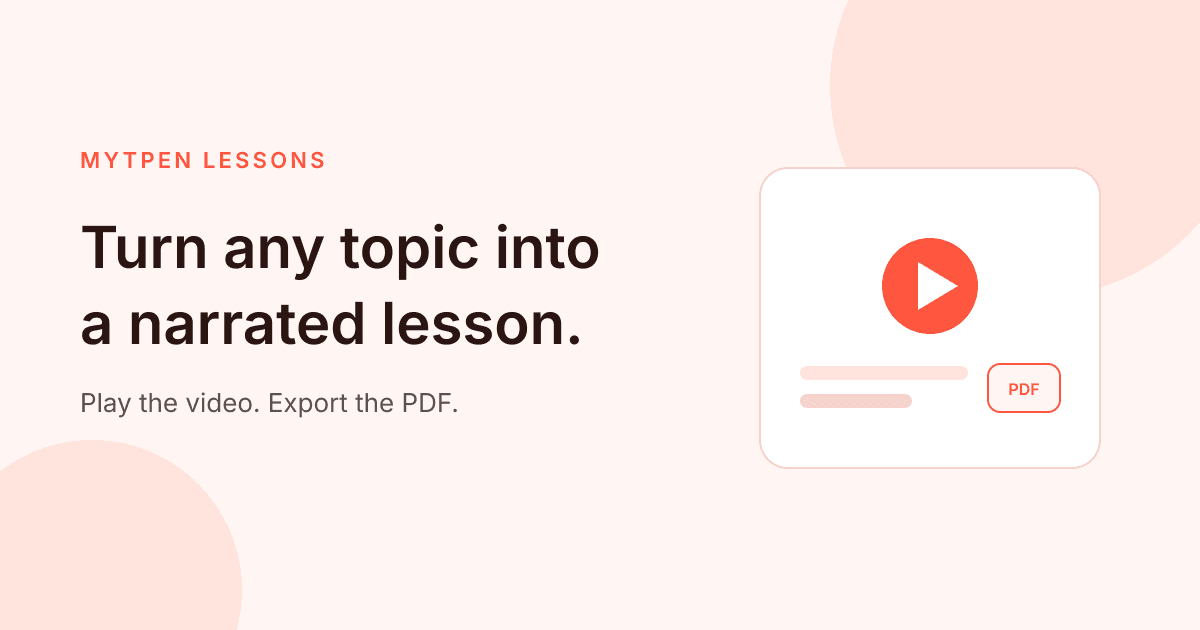
You already know the topic. The hard part is the hour before students need it, when the idea is clear and the materials are not. A slide deck takes the evening. A filmed explanation takes longer, and it asks you to perform on camera. Lessons is the myTpen workflow for that gap. You type a topic or a lesson prompt, you include the narration language, and the lesson plays as a video. When a student needs a page to keep, you export it as a PDF.
This is for the teacher doing that work herself, including the many women who plan the next lesson after the school day is already over.
What you are opening#
myTpen is where we build academic workflows for teachers. The sentence we use for the work is plain: we built workflows, not apps. The name on the front of the site is The EdTech Operating System. There are more than 15 workflows in it. Lessons is the one teachers use most.
Exams is the other flagship. It works in all global languages, and students register to take exams. This guide stays with Lessons. Pricing is not listed on the site. Create a free account at mytpen.app and open Lessons with the topic you are about to teach. The overview is the short tour of the rest.
The only inputs that matter#
Lessons asks for two things you already have: a topic, or a fuller lesson prompt when you want the narration aimed at one class, and the narration language. Include the language in what you type. If your students hear one language in the room and another at home, name the language you want the lesson to speak.
There is no filming, no timeline, and no separate voiceover session. You type. The lesson plays as a video. You can export it as a PDF.
| What you bring | What Lessons does |
|---|---|
| A topic or a lesson prompt | Plays the lesson as a video |
| The narration language, written into the prompt | Narrates the lesson in that language |
| A few minutes before class | Gives you a video to play and a PDF to export |
Write the prompt the way you would brief a colleague#
A topic can be a short phrase, such as photosynthesis. A lesson prompt is the same topic with the class in mind. You are not filling in secret fields. You are writing the note you would leave for a colleague covering your period.
A useful prompt has four plain parts: the topic, in the words you use with students; who it is for, such as the grade or the course; the one or two ideas they should leave knowing; and the narration language. The class and the language belong in the prompt. They are not hidden switches.
Here is a prompt a science teacher can paste and then edit:
Photosynthesis for a middle-grade science class. Explain it in simple English for students meeting the word for the first time. Cover what the leaf takes in, what it makes, and why the plant needs light. Narrate the lesson in English.
Change the last line when the class needs another language: Hindi, Arabic, Spanish, or whichever language you want them to hear. If the first video drifts, name the grade, cut a side topic, and play it once more.
Play the video, then decide who it is for#
When the lesson plays, watch the opening the way a student will. If it names the topic, and the language sounds like the room you teach, you have something you can use. If it does not, change the prompt and play it again. The edit is in the words, not in a video editor.
You can use the video and still lead the room. Play it at the start of the period, then talk through the idea in your own words. Or play a short stretch, pause, and ask one student to say the idea back. Send it to a student who was absent, so the explanation does not depend on a classmate's notes. Keep the prompt and run the lesson again the next time you teach the topic.
The mighty teacher, in the way we use that phrase, is the teacher whose judgment is in the prompt and in the room. The video carries the narration she decided on. You do not have to perform on camera.
Export the PDF when someone needs a page#
Some students will not watch a video a second time. A parent may want a page. You may want something to print. Export the lesson as a PDF, then hand it out, send it where you already send work, or print one copy. The video and the PDF are the same lesson: one you play, one you keep.
A full pass, from a topic to something you can teach with#
Here is one pass, using the photosynthesis prompt. Swap in your own topic and language.
- Create a free account at mytpen.app if you do not have one.
- Open Lessons.
- Type the topic or the lesson prompt, and include the narration language. Use the photosynthesis prompt above, or write your own in the same shape.
- Play the lesson as a video. Listen to the opening. If the language or the focus is off, edit the prompt and play it again.
- Export the PDF once the video is the explanation you want.
- Decide the classroom move: play it, pause it, or send the PDF along with the video.
Where Lessons sits next to Exams#
A lesson is not an exam. Lessons gives you the narrated video and the PDF. When you want students to register and take an exam, that is Exams, the other flagship. Exams works in all global languages.
Teach with Lessons. When you are ready to see what students can do, use Exams and let students register. They are two workflows in one system, which is the point of calling myTpen The EdTech Operating System.
Questions about the account are on the FAQ. If something blocks you, the support page is there. More writing for teachers lives in the Knowledge Hub, beside the essays we still keep on Medium.
What we mean by a mighty teacher#
The mission is to make teachers mighty again. Mighty, here, is practical. A topic you understand can become a narrated lesson without a production crew, and without a night of slides for an idea you could already say out loud.
We say we built workflows, not apps, because another icon is not what the evening needs. There are more than 15 workflows. Lessons is the one teachers open most, because the explanation comes first. Exams is there when it is time to check what students can do.
myTpen is backed by Google and partnered with Coursera. That is the trust line. It is not a promise that someone else will plan your class. The topic stays yours. The language stays yours. Lessons narrates the lesson, plays it as a video, and lets you export the PDF.
Where it fits in your workflow#
Lessons is the start of Lesson Teaching. You narrate the lesson, then the notes, the links, and a confirmation from the class follow it through the week.
- Lessons narrates the lesson.
- Board is where you brainstorm the topic.
- Save the notes to Drive.
- Notice Board broadcasts the lesson notes and the material links.
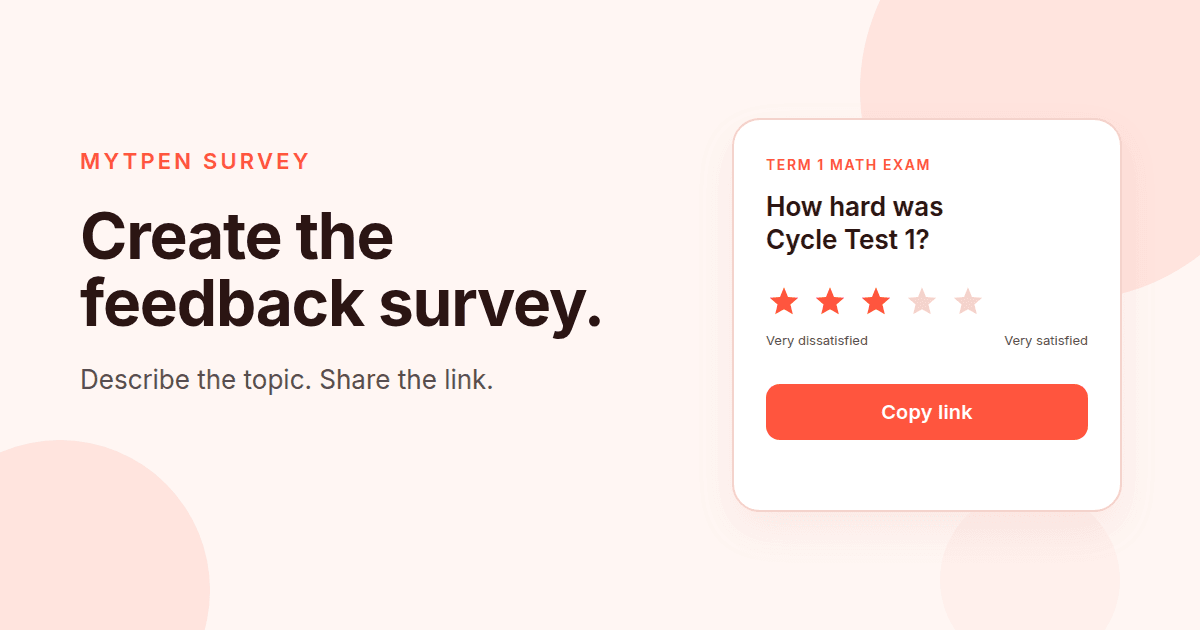
- Survey collects confirmation that everyone can access the materials and understood the lesson.
- Use those replies to improve the teaching.
The explanation comes first. Board, the notice, and the survey are how the class keeps it. That is Lesson Teaching in The EdTech Operating System.
Try it on the lesson you are avoiding#
Pick the topic you are least eager to prepare. Write a prompt with the topic, the class, the idea they should leave with, and the narration language. Play the video. Export the PDF. Use them the next time that class meets.
Create a free account at mytpen.app.
Create a free account
Open myTpen and start with the workflow you need before the next class. Pricing is not listed publicly.
Create a free account