How to Extract Text from a PDF Question Paper
Extract text from a PDF question paper in myTpen Data Extract. Upload one file, read the confidence score, and copy the text you still proofread first.
myTpen Team12 min read
- Data Extract
- Teaching
- Question papers
- Workflows
You have last year's question paper as a PDF, and the sentences will not select. Retyping the chapter takes the evening you meant to spend on the class. This guide is how to extract text from a PDF question paper when you need the words in a form you can copy, read, and edit. myTpen Data Extract is the workflow for that job. The tutorial opens with "Copy data from any handwritten or digital documents with myTpen Data Extract".
This is for the teacher doing that work herself, including the many women who retype a paper after the school day is already over.
What extracting text from a PDF question paper is for#
A question paper you can reuse is text. You want the chapter, the questions, and the options in an order you can paste into the document you already keep, then change a number or a stem before the paper goes out again.
myTpen is where we build academic workflows for teachers. We built workflows, not apps. The name on the front of the site is The EdTech Operating System. Data Extract is one of the Educator Bundle tools, for when the paper, the notes, or the worksheet already exists and you need the words.
Create a free account at mytpen.app and open Data Extract with the file in front of you. When a topic should play as a narrated video, use Lessons. When the question is already a photo and you need the worked steps, use Answers. When the lesson is something you draw and keep across pages, use Board. Other guides live in the Knowledge Hub.
How to extract text in three steps#
Watch the tutorial once, then use the same three steps on your own file. The app header reads "myTpen DATA EXTRACT". The page heading is "Use this app to extract data from your handwritten notes or digital documents".
- Upload your file. Click "Choose File" and pick a JPG, PNG, WEBP, or PDF. That can be a scanned or digital question paper, or a photo of handwritten notes or answer sheets. In the tutorial the file is "CBSE physics 9th Grade.pdf". After you choose it, the box shows "Selected: CBSE physics 9th Grade.pdf".
- Click Process. The button is red. The narration says that within seconds you see the information extracted and converted into clean, structured data that's ready for review and editing.
- Review the extracted text. Each page shows a word count and a confidence score. Then click "Copy All" and paste it where you need it. A copy icon on the page copies that page alone. The narration says "Just click 'copy' when you're ready".
What you review is the text. Proofread it against the page, then paste it into the document you keep, or into another myTpen app such as Exams or Lessons.
What the physics question bank came back as#
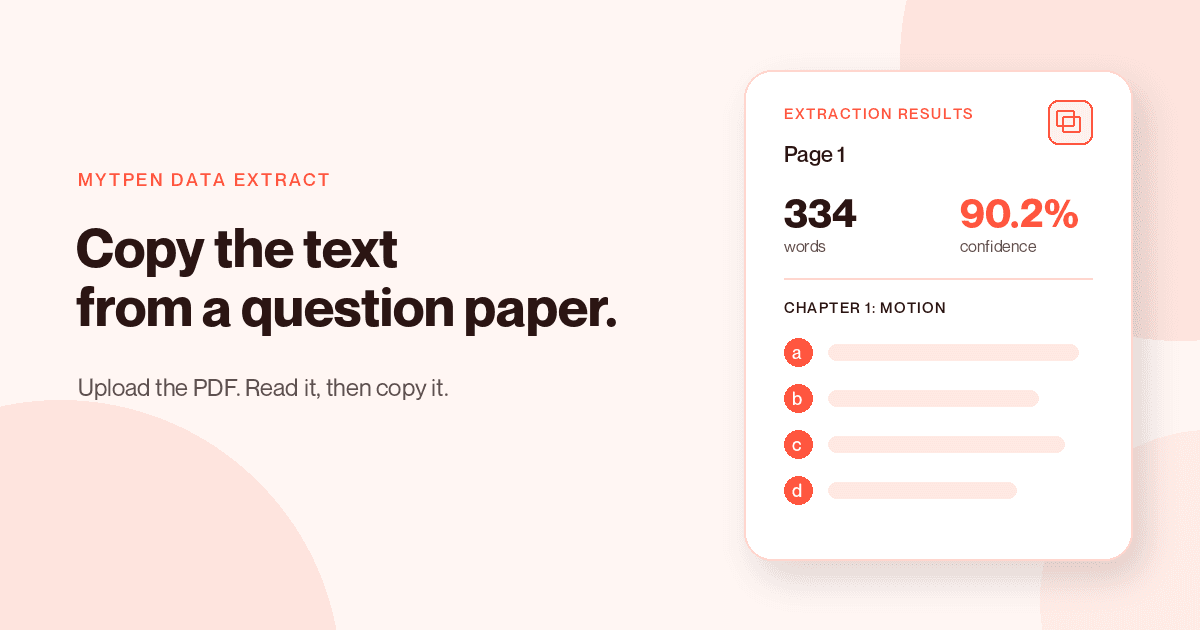
The file in the tutorial is a typed PDF. The page is headed "CBSE Living Science Physics 9", then "Multiple-Choice Questions (QUESTION BANK)", then "CHAPTER 1: MOTION". The options are labeled a to d and printed in a 2x2 grid.
After Process, the screen reads "Extraction Results (1 pages)". The metrics are 334, the total word count, and 90.2%, the average confidence. The page block reads "Page 1 (334 words • 90.2% confidence)", and under it is the extracted plain text. The 2x2 option grid came back as a clean ordered list, so the four choices stayed in order.
That score is why you read the text before it carries your name. Compare the chapter title, the question numbers, and each option with the PDF. Then change a number or a stem in the document you pasted into.
How to copy text from a scanned PDF#
A scanned PDF is a picture of a page, so dragging across a sentence selects nothing. How to copy text from a scanned PDF is the three steps above. Choose File, click Process, read the score, and click Copy All.
Teachers can upload a photo or a scan of handwritten notes, answer sheets, and worksheets and extract the text. The narration says teachers can extract and copy data from any document or image, handwritten or digital. The physics page in the tutorial came back at 334 words and 90.2% confidence. Read the score on the file you uploaded, then proofread the text you are about to reuse.
How to digitize old question papers#
Old question papers are how a course remembers what it already asked. The narration says past question papers and learning materials can be digitized instantly, making them reusable and easy to update. You digitize a paper by copying the text and editing it in your own document.
Keep the PDF next to the text you pasted. Change the year, a number, or a stem. In the tutorial, "Multiple-Choice Questions (QUESTION BANK)" and "CHAPTER 1: MOTION" came through as text, and the option grid came through as a list you can read in order. That is the shape you check: chapter, questions, options, in the order the page used.
Convert a scanned exam paper to editable text#
Editable means text you can change after you paste it. You convert a scanned exam paper to editable text with the same three steps. Upload the PDF, click Process, review the page, and click Copy All.
On the tutorial page the average confidence is 90.2%, beside 334 words. Proofread the options and the units, then edit in the document you pasted into. The narration says what comes back is ready for review and editing.
Image to text for teachers#
Image to text for teachers is the same screen when the file is a picture. Accepted types are JPG, PNG, WEBP, and PDF. The narration says you can upload handwritten notes and answer sheets, forms, or printed documents.
The page heading names handwritten notes and digital documents. Upload the photo, click Process, and read the word count and the confidence score on that page before you click Copy All.
Copy text from a photo of a worksheet#
A photo of a worksheet, printed or handwritten, is a JPG, a PNG, or a WEBP. Copy text from a photo of a worksheet with Choose File, Process, and Copy All. Read the confidence score against the print before a question goes back to the class.
In the tutorial, the physics PDF's option grid became an ordered list. A worksheet photo comes back as text you can check the same way: the questions in order, then the words you still want to change.
Convert handwritten notes to text#
You convert handwritten notes to text by photographing the page or scanning it, then using the three steps. A phone photo is a JPG, PNG, or WEBP. A scan is often a PDF. Teachers can upload that photo or scan and extract the text.
The intro card says "Copy data from any handwritten or digital documents with myTpen Data Extract". Read the confidence score on your notes, proofread them, and paste them into the document you keep. The narration says the text is ready for review and editing within seconds.
Extract text from handwritten answer sheets#
An answer sheet is the same upload. Teachers can upload a photo or a scan of a handwritten answer sheet and extract the text. A worksheet works the same way. Click Process, read the word count and the confidence score on the page, then click Copy All.
Paste the text into your documentation, or into another myTpen app, and edit the lines you want to change. The narration says you can upload handwritten notes and answer sheets, forms, or printed documents.
OCR for teachers#
OCR for teachers is the ordinary name for getting words off a page you cannot select. In Data Extract, that job is the three steps. You choose the file, you read what came back, and you copy it.
Use it when a question paper, a set of notes, or a worksheet should become words in the document you already teach from. The confidence score is there so you can check the read. The class still gets the paper you decided was right.
Where you paste the text#
The narration says to paste the copied text into your documentation, or into other myTpen apps. A question you copied can go into the file you keep for that chapter. It can also go into Exams or Lessons, when those words should become an exam students take or a lesson you narrate.
Lessons plays a narrated video from a topic, and you can export that lesson as a PDF. The guide is How to Turn Any Topic into a Narrated Video Lesson in Minutes. Answers reads a question from a photo and returns a final answer and the steps. The guide is How to Make an Answer Key from a Photo. Board keeps a lesson on pages you can share as a PNG or SVG. The guide is How to Teach a Lesson on a Multi-Page Whiteboard.
They are workflows in The EdTech Operating System. More writing for teachers is in the Knowledge Hub. Account questions are on the FAQ, and support is there if something blocks you.
Where it fits in your workflow#
Data Extract belongs to In-Class Assessment and to Document & Learning Material. A past paper can become the exam the class takes. The same text can become handwritten materials you hand out.
In-Class Assessment uses the myTpen mobile app.
- Data Extract copies the text from a past question paper.
- Paste it into Exams to create an MCQ exam.
- Print the OMR bubble sheets.
- The OMR Scanner mobile app scans each sheet for auto grading.
- Export the gradebook as Excel.
- Report Card imports the grades and sends the report cards to parents on WhatsApp.
- Notice Board announces the results.
Document & Learning Material starts from the same copy.
- Data Extract takes the text from a PDF or an image. Handwriting is supported.
- Copy the content.
- Text to Handwriting turns it into handwritten-style learning materials.
- Merge the PDFs.
Frequently asked questions#
How do you extract text from a PDF question paper?#
Click Choose File and select the PDF. The tutorial file shows as Selected: CBSE physics 9th Grade.pdf. Click Process. Extraction Results lists the page, the word count, and the confidence. Click Copy All and paste the text where you need it.
How do you copy text from a scanned PDF?#
Use the same three steps. Choose File, click Process, read the confidence score, and click Copy All. A scanned question paper is a PDF. The physics page in the tutorial came back as 334 words at 90.2 percent confidence.
How can a teacher digitize old question papers?#
Upload the paper, click Process, and copy the text. The narration says past question papers and learning materials can be digitized instantly, so they are reusable and easy to update. Paste the text into your document and edit the year, a number, or a stem.
Can you convert a scanned exam paper to editable text?#
Yes. After Process, review the word count and the confidence score, click Copy All, and change the text in your own document. On the tutorial page the word count is 334 and the average confidence is 90.2 percent. Proofread the options before you edit the paper.
Can a teacher copy text from a photo of a worksheet?#
Yes. The upload accepts JPG, PNG, WEBP, and PDF. A photo of a printed or handwritten worksheet uses Choose File and Process, then Copy All. Read the confidence score against the page before you reuse a question.
Can you convert handwritten notes to text?#
Yes. Upload a photo or a scan of the handwritten notes. Click Process, read the confidence score, and click Copy All. Proofread the notes, then paste them into the document you keep.
Can you extract text from handwritten answer sheets?#
Yes. Teachers can upload a photo or a scan of a handwritten answer sheet or worksheet and extract the text. Choose File, click Process, read the score on that page, and click Copy All.
What should you do with the confidence score?#
Read it, then proofread the page. The tutorial shows 90.2 percent average confidence beside 334 words, on Page 1. Compare the extracted list with the PDF, including options that were printed in a grid and came back as a list.
Where can you paste the extracted questions?#
Into your own documentation, or into another myTpen app. Exams and Lessons are the workflows when the text should become an exam or a narrated lesson. Click Copy All, then open the workflow you need.
Which app do you use after Data Extract?#
Paste the text into Exams to create an MCQ exam, then print the OMR bubble sheets. For learning materials, copy the content into Text to Handwriting, turn it into handwritten-style pages, and merge the PDFs.
What we mean by a mighty teacher#
The mission is to make teachers mighty again. The tutorial closes with "You're not average anymore; you're a mighty teacher." Mighty, here, is practical. A question paper can become text you copy and update, and so can a photo or a scan of handwritten notes, an answer sheet, or a worksheet.
We built workflows, not apps. You upload the file, read the score, and copy the text. myTpen is backed by Google and partnered with Coursera. The paper stays yours, and so does the edit.
Become mighty again.
Try it on the paper you keep retyping#
Pick the PDF you have been copying by hand. Open myTpen Data Extract. Choose the file, click Process, and read the word count and the confidence before you click Copy All.
Create a free account at mytpen.app.
Create a free account
Open myTpen and start with the workflow you need before the next class. Pricing is not listed publicly.
Create a free account