How to Create a Student Feedback Survey
Create a student feedback survey in myTpen Survey. Describe the topic, edit the questions the AI writes, share one link, and read the replies that come back.
myTpen Team11 min read
- Survey
- Teaching
- Feedback
- Workflows
You have the math paper back, and you still do not know whether the trouble was the difficulty or the wording. Asking the room out loud gets the students who already speak. This guide is how to create a student feedback survey when you want the class, a colleague, or a parent to answer on a link. myTpen Survey is the workflow for that job. You describe the topic, the questions are written for you, and the responses come back in one list.
This is for the teacher doing that work herself, including the many women who want an honest read on the paper after the school day is already over.
What a student feedback survey is for#
A student feedback survey asks the people who sat the lesson, or sat the paper, what they actually met. You want a rating you can compare, and a sentence when a star is not enough. Students can answer. So can other teachers, and so can parents.
Survey turns those replies into actionable data, so the next decision comes from real feedback. The work has three parts: Create, Customize, and Collect. On Create Survey, the line is plain: "Describe your survey topic, and our AI will generate relevant questions. Customize response types and share with your audience."
myTpen is where we build academic workflows for teachers. We built workflows, not apps. myTpen is The EdTech Operating System. Survey is one of the Educator Bundle tools, for the week you need to hear from the people in the room before you write the next paper.
Create a free account at mytpen.app and open Survey with the topic in front of you. The other guides in the Knowledge Hub cover a scanned test, a question paper, a worked key, a narrated lesson, and a board.
How to create a student feedback survey in five steps#
Watch it once, then write the survey for the paper you just gave.
- Create a free account at mytpen.app if you do not have one yet.
- Click "Create a survey". On Survey Setup, write a Survey title of up to 100 characters. Add a Description if you want one. It is optional. In the AI Prompt, describe the topic. The field reads: "Describe the topic of your survey. Our AI will generate survey questions based on this prompt." A placeholder reads "Student feedback about student wellbeing and energy level". Set the number of questions. The default is 5, and the note beside it is "5-20 recommended". Click Next. The questions appear in seconds.
- On Questions, under Edit Questions, set each item to Rating or Open Ended. Edit the question text. Delete a question with the trash icon. Click "Add Question" when you want one you wrote yourself.
- On Preview, read the survey through. Click "Create survey" to publish it.
- Under Share Your Survey, copy the link with the Copy button. Share it by email, messaging, or social media.
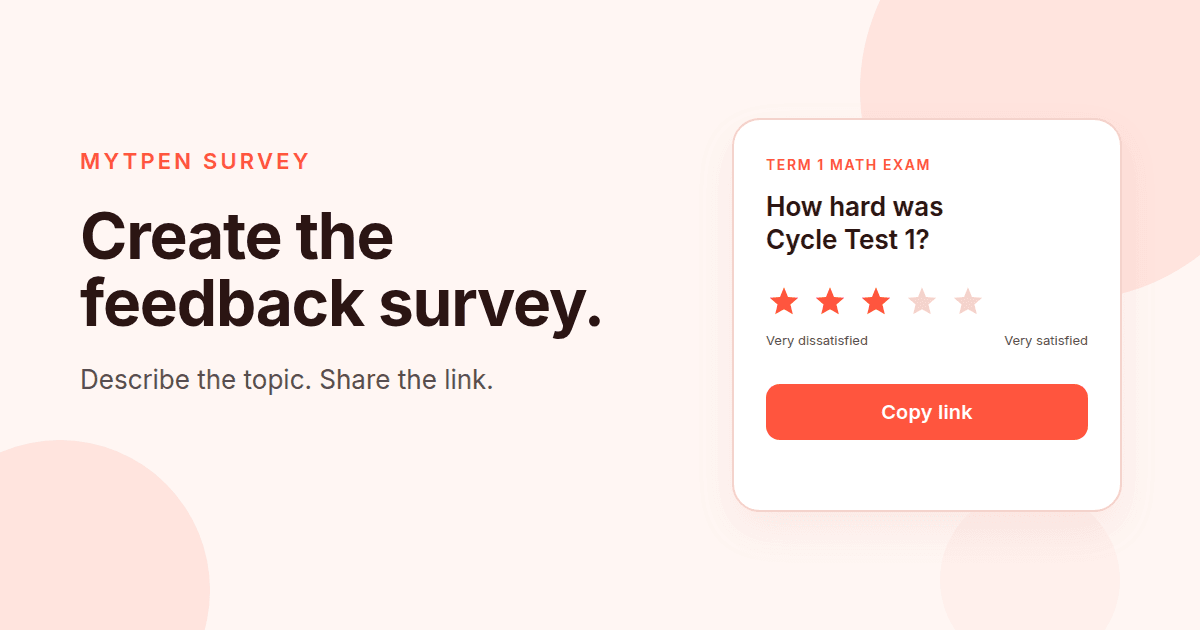
The example is titled "Term 1 Student math exam feedback". The prompt is "Math Exam paper difficulty - Cycle test 1". Five questions come back.
Survey questions about test difficulty#
Those five questions are about the paper, not about whether the class likes you.
- How would you rate the overall difficulty of the Math exam in Cycle Test 1?
- How challenging did you find the problem-solving sections of the Math exam?
- How well did the Math exam's difficulty match your expectations based on the syllabus?
- How would you rate the clarity of the questions in the Math exam?
- How appropriate was the difficulty of the Math exam in assessing your understanding of the material covered?
Read them as a set. Overall difficulty and the problem-solving sections are separate facts. The syllabus question asks whether the difficulty matched what students were led to expect. Clarity asks about the wording. The last question asks whether the difficulty was appropriate for the material you covered. A class can call a paper hard and still say the questions were clear. Name your own subject and test in the title and the prompt, then edit the wording so the questions name your paper.
A student feedback survey for teachers#
A student feedback survey for teachers is the one you send while you can still use the answer. The math exam is one topic. The placeholder in the AI Prompt is another you can type: "Student feedback about student wellbeing and energy level". A title such as "Term 1 Student math exam feedback" names the paper, and it can run to 100 characters. A description is optional, for one sentence on why you are asking.
Five is the default. The note on the number of questions is "5-20 recommended". A rating question is a 5-star scale from "Very dissatisfied" to "Very satisfied", for a number you can compare with the next cycle test. An open-ended question is where she writes the reason a star cannot carry: which problem, which line of the syllabus, which instruction. Change a name that is not yours, delete a question you will not act on, and use "Add Question" for one you already ask out loud.
An AI survey generator for teachers#
The AI Prompt is where the questions start. You describe the topic. The field says: "Our AI will generate survey questions based on this prompt." Set the number, from the default of 5, and click Next. The questions appear in seconds.
"Math Exam paper difficulty - Cycle test 1" brings back the five questions above. Switch a question from Rating to Open Ended when you want words instead of stars, change a phrase, or remove one. Preview is the read-through in the order a student will meet the questions, and "Create survey" publishes that list.
An anonymous student survey#
An anonymous student survey is the same link, with a choice on the form. The person who opens it can tick "Respond anonymously". The line under that choice reads: "If you respond anonymously we will not save any of your information". Or she can give a Full Name and Email.
Use the anonymous tick for the paper, the pace, or the room, where a name would change the answer. Use Full Name and Email when you may need to write back. Total Responses counts everyone who submitted. Named Respondents counts the people who gave a name.
Collect feedback without student accounts#
Collect feedback without student accounts by sharing the link. No account is needed to respond. A student, a teacher, or a parent opens the link in any web browser and answers there.
Share Your Survey gives you the link and a Copy button. Send it by email, by messaging, or on social media, after the test, to a colleague, or to parents. They answer in any web browser.
A parent feedback survey for schools#
Schools can also gather opinions from parents on various programs or policies. A parent feedback survey for schools is that job, on the same survey. Write a title a parent will recognize. Describe the program or the policy in the AI Prompt. Share the link by email, messaging, or social media.
A parent opens it in any web browser, anonymously or with her name and email. Ask about the program you can still change, then read the ratings and the written answers before the next meeting.
What comes back after people answer#
The Surveys list shows Title, Total Responses, and Last Updated. Open a survey from the three-dot menu with "View Survey Responses".
The summary shows Total Responses and Named Respondents. The table lists Name, Email, Submitted At, and Average Rating. Open any respondent to see her answers in detail.
myTpen compiles the responses and presents clear insights. Average Rating on a row is that person's place on the rating questions, from "Very dissatisfied" to "Very satisfied". Open the row and you see each answer. Start with the rows toward "Very dissatisfied", then read what those students wrote before you set the next paper.
Where Survey sits next to the other workflows#
Survey is the link you send when you need to hear from the class, from colleagues, or from parents. The other workflows are for a different moment in the same week.
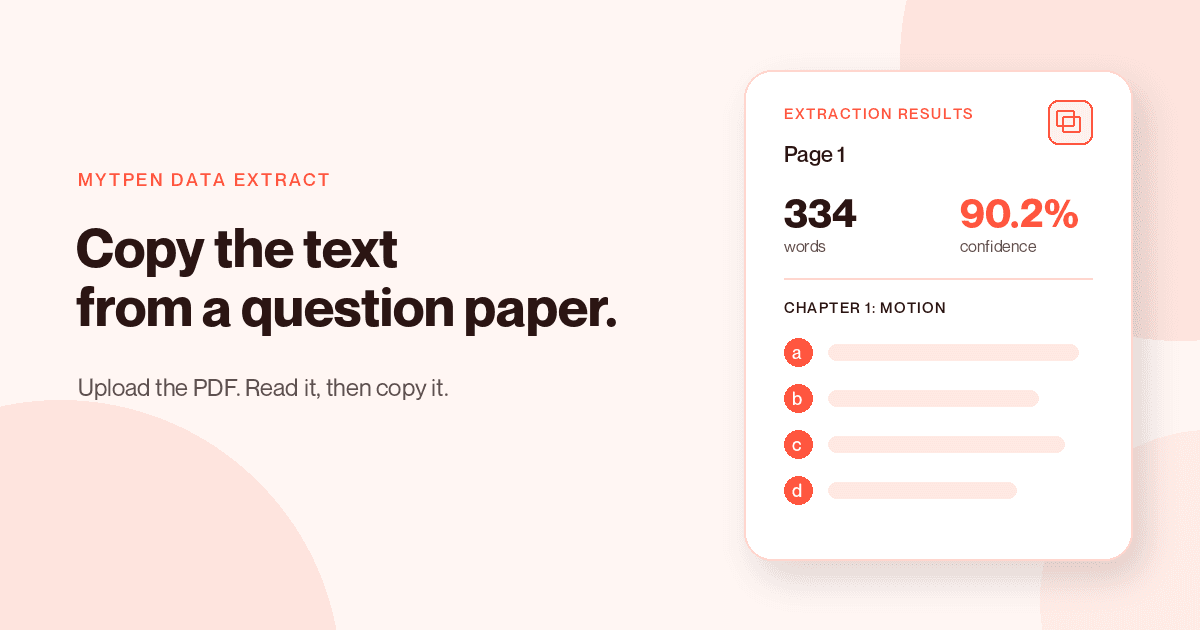
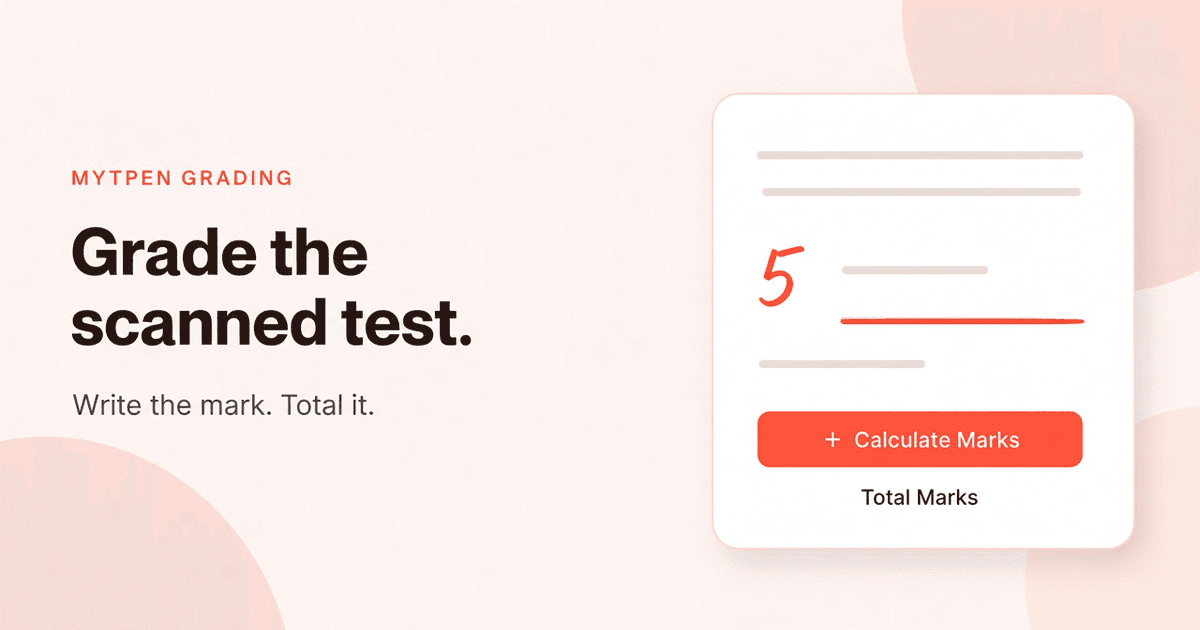
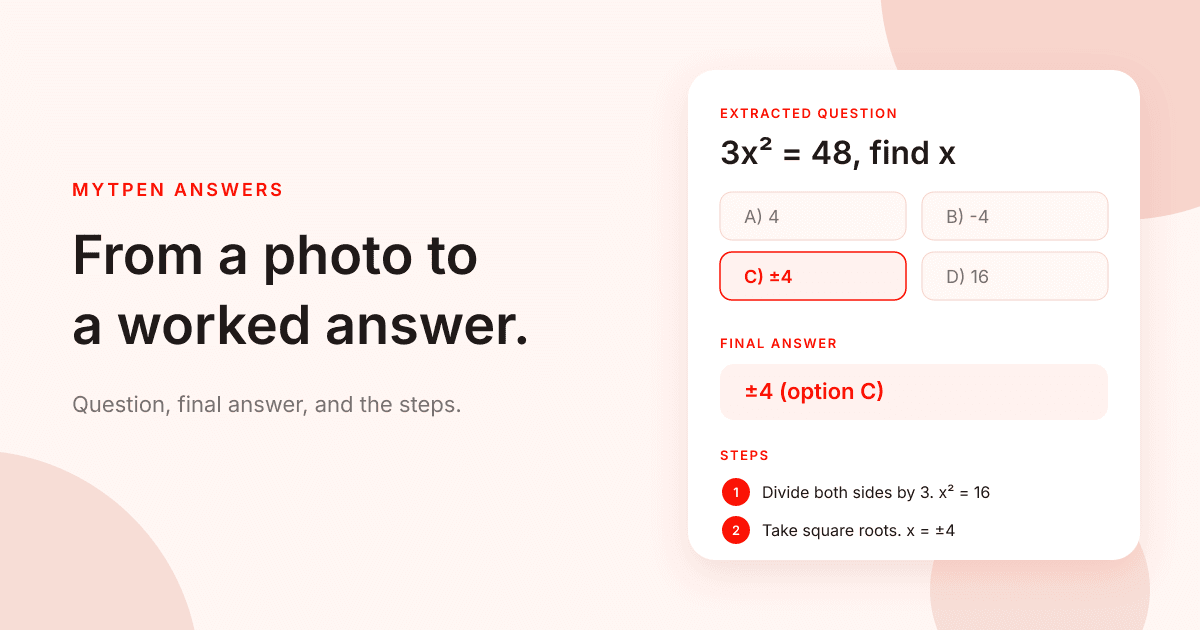
Grading is where you mark a scanned test and total the score. The guide is How to Grade a Scanned Test. Data Extract copies text out of a PDF question paper, with a word count and a confidence score. The guide is How to Extract Text from a PDF Question Paper. Answers reads a question from a photo and returns a final answer and the steps. The guide is How to Make an Answer Key from a Photo. Lessons plays a narrated video from a topic, and you can export that lesson as a PDF. The guide is How to Turn Any Topic into a Narrated Video Lesson in Minutes. Board keeps a lesson on pages you can share as a PNG or SVG. The guide is How to Teach a Lesson on a Multi-Page Whiteboard.
Send the survey when the paper is marked and you want the class to say what the paper felt like. They are workflows in The EdTech Operating System. More writing for teachers is in the Knowledge Hub. Account questions are on the FAQ, and support is there if something blocks you.
Where it fits in your workflow#
Survey belongs to Lesson Teaching, the Parents–Teachers Meeting, and Continuous Professional Development. The replies decide what you do next.
Lesson Teaching checks that the lesson landed.
- Lessons narrates the lesson.
- Board is where you brainstorm the topic.
- Save the notes to Drive.
- Notice Board broadcasts the lesson notes and the material links.
- Survey collects confirmation that everyone can access the materials and understood the lesson.
- Use the replies to improve the teaching.
A Parents–Teachers Meeting starts with the invitation and ends with the minutes.
- Notice Board announces the date, the time, and the agenda.
- Pull the student records from Drive.
- Survey collects the feedback after the meeting.
- Notice Board publishes the minutes, the action items, and the next steps.
Continuous Professional Development keeps a record of what you learned.
- Survey collects the feedback, and you analyze it.
- Document the learning outcomes in Journal.
- Get the certifications.
- Track the milestones.
Frequently asked questions#
How do you create a student feedback survey?#
Click "Create a survey", write the title and the AI Prompt, and set the number of questions. Click Next, edit the questions, preview, and click "Create survey". Copy the link and share it.
What should a student feedback survey for teachers ask?#
Ask about the thing you can still change: overall difficulty, the problem-solving sections, the match to the syllabus, question clarity, or the students themselves. The field placeholder is "Student feedback about student wellbeing and energy level".
What are useful exam feedback survey questions?#
The five for "Term 1 Student math exam feedback" cover the difficulty of the Math exam in Cycle Test 1, the problem-solving sections, the match to the syllabus, the clarity of the questions, and whether the difficulty assessed the material.
How does an AI survey generator for teachers write the questions?#
Describe the topic in the AI Prompt. The number of questions starts at 5, with the note "5-20 recommended". Click Next, and the questions appear in seconds. Edit them, then click "Create survey".
How do you run an anonymous student survey?#
Share the link and let the respondent tick "Respond anonymously". The note says: "If you respond anonymously we will not save any of your information". She can instead give a Full Name and Email.
How do you make a parent feedback survey for schools?#
Describe the program or the policy in the AI Prompt and share the link. Schools gather opinions from parents on programs or policies. A parent opens the link in any web browser, with no account required.
What are survey questions about test difficulty?#
The prompt "Math Exam paper difficulty - Cycle test 1" brings back five: overall difficulty, the problem-solving sections, the match to the syllabus, question clarity, and whether the difficulty fit the material.
How do you collect feedback without student accounts?#
Copy the link under Share Your Survey and send it by email, messaging, or social media. Participants open it in any web browser. No account is needed to respond.
Which app do you use after Survey?#
After a lesson, use the replies to improve the teaching. After a Parents–Teachers Meeting, publish the minutes, the action items, and the next steps on Notice Board. For professional development, document the learning outcomes in Journal, then get the certifications and track the milestones.
What we mean by a mighty teacher#
The mission is to make teachers mighty again. You're not average anymore. You are a mighty teacher. Mighty, here, is practical. The questions come from the topic you named, the link goes out without a student account, and each response opens so you can read it.
We built workflows, not apps. You describe the survey, share the link, and teach. myTpen is backed by Google and partnered with Coursera. The class stays yours, and so does the decision you make from what they wrote.
Become mighty again.
Try it on the paper you just gave#
Pick the exam the class is still talking about. Open myTpen Survey. Title it, describe the paper in the prompt, and share the link once the preview reads the way you want.
Create a free account at mytpen.app.
Create a free account
Open myTpen and start with the workflow you need before the next class. Pricing is not listed publicly.
Create a free account