How to Conduct a Descriptive Exam Online
How to conduct a descriptive exam online in myTpen Exams. Share the question paper, collect each handwritten answer PDF, and mark the sheet on screen.
myTpen Team11 min read
- Exams
- Teaching
- Assessments
- Workflows
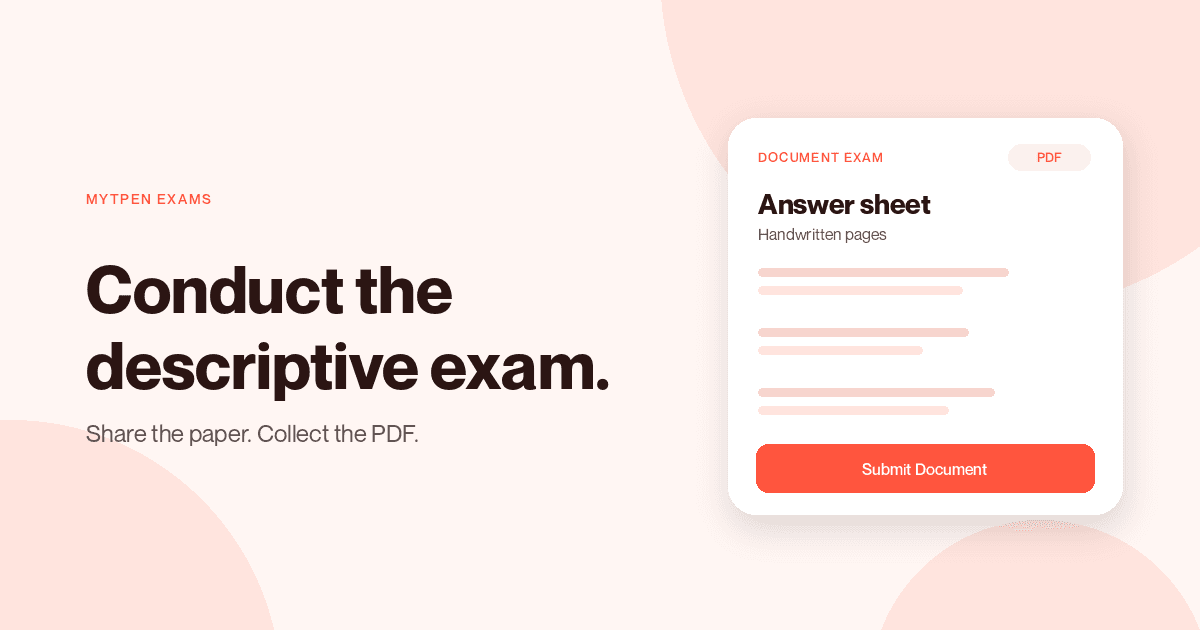
The long answers are the paper you actually want, and the handwritten sheets are the part that takes the evening. The class still needs the question paper, and each sheet still needs a place to land. This guide is how to conduct a descriptive exam online when students write the answers by hand and send the sheet back as a PDF. myTpen Exams is the workflow for that job. It publishes the paper, collects each handwritten answer sheet, and opens the sheet in myTpen Grading so you can mark it and keep the score.
This is for the teacher doing that work herself, including the many women who set a descriptive paper after the school day is already over.
A subjective exam online#
A subjective exam online is a paper of detailed, descriptive answers. Students write, instead of choosing an option.
myTpen Exams manages every type of assessment: online, in-class, and hybrid. The same dashboard runs all three. An online MCQ exam, with automatic evaluation, is How to Create an Online MCQ Exam. An in-class OMR exam, graded from the bubble sheets with your phone, is How to Grade OMR Sheets with Your Phone. Path 3 is handwritten document sheet evaluation, the hybrid path. myTpen Grading is built in, so the sheet they upload opens ready to mark.
This guide stays with that third path. A scan you already have from the copier is How to Grade a Scanned Test. Here, the exam comes first, and the sheet arrives because a student submitted it.
myTpen is where we build academic workflows for teachers. We built workflows, not apps. myTpen is The EdTech Operating System. Exams is the workflow for the afternoon the descriptive paper should go out and the evening the sheets come back.
Create a free account and open myTpen Exams with the question paper in front of you. The other guides are in the Knowledge Hub.
How to conduct a descriptive exam online#
Watch it once, then publish the paper for the class you teach next.
- Create a free account if you are new here. Open myTpen Exams. On the Exams dashboard, under Document Upload, click + Create Document Exam.
- Enter the Exam Title. Duration in minutes is optional. Set a time limit, or leave the exam open-ended.
- Under Write or Upload Question PDF, click Upload PDF and Choose File when the paper is a PDF, up to 5MB. Or click Write Questions and paste the questions when the paper is not a PDF.
- Click Create Exam. On Available Exams, click Share Exam. The Exam Started! window has Copy Link, Copy Exam Key, and Share via Email. Share the link or the key.
- Students open the link and start right away. There is no account for them to create. They enter First Name, Last Name, Email, Student ID, and Department, then click Continue to Exam.
- They can view the question paper and click Download File. They write the answers by hand, upload the sheet as a PDF under Upload Document, up to 5MB, and click Submit Document.
- Open Submissions. The Score stays blank until you grade. Click View Submitted Document. The answer sheet opens in myTpen Grading.
- Use the Tpen (T) grading tool and write the marks by hand on the answers. Click Tpen again to highlight mistakes and corrections with the annotation tools. Click + Calculate Marks, then Save.
- The score appears in the Score column. View Evaluated Document opens the marked paper. Export to Excel downloads the student data.
Create a document upload exam#
A document upload exam is the descriptive paper on the Exams dashboard. Under Document Upload, click + Create Document Exam.
Enter the Exam Title first. The title is the line a student reads before she starts.
Duration in minutes is optional. Set a time limit, or leave the exam open-ended.
Write or Upload Question PDF is where the questions go, and it has two ways in.
Upload PDF is for the paper that is already a file. Click Choose File and select it. The file can be up to 5MB. A question paper you exported, or the PDF you were about to print, belongs here.
Write Questions is for the paper that is not a PDF. Paste the questions you already wrote, whether that is a literature prompt, a history essay, or the working of a mathematics problem.
Click Create Exam. The exam joins Available Exams, ready to share.
Share the link or the exam key#
On Available Exams, click Share Exam. The Exam Started! window is the handoff, and it gives you three actions.
Copy Link copies the exam link. Paste it into the class chat or the group you already use for homework. Copy Exam Key copies the key, for the student who joins with a key. Share via Email sends from that same window.
Share the link or the key with the students, and name the exam in the same message so the class knows which paper it is.
An online exam with PDF upload for students#
An online exam with PDF upload for students is the sitting itself. The student writes on paper. The file she sends is the answer sheet you will mark.
She opens the link and starts right away. There is no account for her to create. She enters First Name, Last Name, Email, Student ID, and Department, then clicks Continue to Exam.
On the exam she can view the question paper, and she can click Download File to keep a copy.
Then she writes. Detailed, descriptive answers, in her own hand. A literature response, the working of a mathematics problem, a labelled diagram, a history essay: the answer is the writing. When the pages are done, she saves them as one PDF.
Under Upload Document she uploads that handwritten answer sheet. The file can be up to 5MB. She clicks Submit Document. Tell the class to click Submit Document before they close the page, the same way you tell them to hand the paper to the front of the room.
On-screen marking for teachers#
On-screen marking for teachers starts on Submissions for that exam. Open Submissions when the sheets have come in and you are ready to mark.
Each submission shows the student details and the submission time. The Score stays blank until the sheet is graded. Click View Submitted Document. The answer sheet opens directly in the myTpen Grading app, on the page the student wrote.
Use the Tpen (T) grading tool to write the marks by hand, directly on the answers.
Click Tpen again to switch it into a pen. That pen is for highlighting mistakes and corrections, with the annotation tools. The note sits on the answer, in your handwriting, so the student can see the place you marked.
Click + Calculate Marks. myTpen reads the handwritten marks on the page, adds them up, and stamps the total on the sheet. The stamp carries the total and the word Approved. Click Save. The graded exam is saved for that student.
On a non-touch device, connect a pen tablet such as a Wacom for a better handwriting experience.
A PDF you already scanned is marked in How to Grade a Scanned Test. View Submitted Document opens a submission from this exam in the same Grading app.
Digital evaluation of answer sheets#
Digital evaluation of answer sheets, here, is the marked paper and the score that follows it. You write every mark. myTpen reads those handwritten marks, adds them up, and the score is recorded with the student.
The allocated score appears automatically in the Score column on Submissions. The row that was blank now holds the total you saved.
View Evaluated Document opens the evaluated paper. The marks are on the answers, and the total stamp is on the sheet. That evaluated paper stays attached to the submission, for later reference and for audit. The marked sheet is the record.
Export to Excel, on Submissions, downloads the student data. That workbook is the gradebook you save with the class records.
Where the descriptive exam sits with the other workflows#
The descriptive exam is the paper students write. The other workflows are a different moment in the same week.
How to Create an Online MCQ Exam is the same Exams dashboard when the paper is options and the score should arrive on submit. How to Grade OMR Sheets with Your Phone is that MCQ exam printed for the room. Data Extract copies a past question paper when you want the words before you paste them into Write Questions. Grading marks a scanned test you already have as a PDF. Report Card sends a card to the parent. Notice Board announces that the results are out. Lessons narrates a topic. Board keeps the lesson on pages. Survey collects a reply. Answers works a question from a photo.
More writing for teachers is in the Knowledge Hub. Account questions are on the FAQ, and support is there if a step blocks you.
Where it fits in your workflow#
The handwritten exam is one pass through the week. The gradebook is what you keep.
- Exams creates a Document Upload exam for descriptive answers.
- Students submit their answer PDFs.
- Grading is where you grade the submissions and allocate the scores.
- Export the gradebook as Excel.
- Save the gradebook to Drive.
The online MCQ exam and the in-class OMR exam have their own guides, How to Create an Online MCQ Exam and How to Grade OMR Sheets with Your Phone.
The Excel gradebook is the file you carry forward. That is Handwritten Exam Assessment in The EdTech Operating System.
Frequently asked questions#
How do you conduct a descriptive exam online?#
Under Document Upload, click + Create Document Exam. Enter the Exam Title, set Duration in minutes or leave the exam open-ended, and add the questions with Upload PDF or Write Questions. Click Create Exam, then Share Exam, and send the link or the exam key. Students upload a handwritten answer sheet, and you mark it from Submissions.
What is a subjective exam online?#
A subjective exam online asks for detailed, descriptive answers instead of a chosen option. In myTpen Exams that paper is a Document Upload exam. Students write by hand, upload the answer sheet as a PDF, and you mark the sheet in myTpen Grading.
How does an online exam with PDF upload work for students?#
Students open the link and start right away, with no account to create. They enter First Name, Last Name, Email, Student ID, and Department, then click Continue to Exam. They can view the question paper and click Download File. Under Upload Document they upload the handwritten answer sheet as a PDF, up to 5MB, and click Submit Document.
How do you share a descriptive exam with the class?#
On Available Exams, click Share Exam. The Exam Started! window has Copy Link, Copy Exam Key, and Share via Email. Share the link or the key. Students open the link and begin.
How does on-screen marking for teachers work?#
Open Submissions and click View Submitted Document. The answer sheet opens in myTpen Grading. Use Tpen (T) to write the marks by hand on the answers, then click Tpen again to highlight mistakes and corrections. Click + Calculate Marks. myTpen reads the handwritten marks, adds them up, and stamps the total. Click Save.
What is digital evaluation of answer sheets in this workflow?#
You write the marks on the submitted sheet. myTpen reads those handwritten marks and adds them up, then stamps the total on the page. The score appears in the Score column. View Evaluated Document keeps the marked paper with the submission, and Export to Excel downloads the student data.
Where does the descriptive exam sit in the week?#
Handwritten Exam Assessment runs from the Document Upload exam to the answer PDFs, grading, the Excel gradebook, and Drive. The online MCQ exam and the in-class OMR exam run from the same Exams dashboard, and each has its own guide.
What we mean by a mighty teacher#
The mission is to make teachers mighty again. You're not average anymore. You're a mighty teacher. Mighty, here, is practical. The paper you already wrote becomes the exam, the handwritten sheets come back on the link you shared, and the total is stamped from the marks you wrote.
We built workflows, not apps. You share the paper, mark the sheets, and teach. myTpen is backed by Google and partnered with Coursera. The class stays yours, and so does the paper the student wrote.
Become mighty again.
Send the descriptive paper the class is waiting for#
Pick the question paper the class should write. Open myTpen Exams. Under Document Upload, click + Create Document Exam, add the questions, and click Create Exam. Share the link. When the sheets come in, open each one, write the marks with Tpen, and click + Calculate Marks.
Create a free account
Open myTpen and start with the workflow you need before the next class.
Create a free account