How to Grade a Scanned Test
Grade a scanned test in myTpen Grading. Upload the PDF, write marks by hand with Tpen, annotate with Cpen, and total the score on the last page instantly.
myTpen Team10 min read
- Grading
- Teaching
- Assessments
- Workflows
You have the test as a PDF from the copier, and the marks are still waiting to be written. Putting a number in the margin, then adding the column again at the desk, is the part that takes the evening. This guide is how to grade a scanned test when the handwriting is already on the page and the total should come from the marks you write. myTpen Grading is the workflow for that job. You grade the submissions, export the results, and skip the manual calculation.
This is for the teacher doing that work herself, including the many women who mark one more paper after the school day is already over.
What grading a scanned test is for#
A scanned test still needs your judgment on each answer. You want the mark beside the work, a note the student can see on the mistake, and a total that comes from those marks.
myTpen is where we build academic workflows for teachers. We built workflows, not apps. myTpen is The EdTech Operating System. Grading is one of the Educator Bundle tools, for when the assignment or the test is already a PDF and you are ready to mark it.
Create a free account at mytpen.app and open Grading with the file in front of you. The other guides in the Knowledge Hub cover a question paper, a worked key, a narrated lesson, and a board.
How to grade a scanned test in six steps#
Watch it once, then mark the file in front of you.
- Create a free account at mytpen.app if you do not have one yet.
- Upload the PDF of the scanned assignment, test, or any document. Drop it on "Upload or drag and drop your file here", click "Choose from device", or click "Start with sample file". You can also import from Google Drive, myTpen DRIVE, Dropbox, or OneDrive. A short tour opens with "Let's get started!". Leave it with "Exit the tour".
- Choose Tpen on the left toolbar and write the marks by hand on the page. Handwriting recognition turns those marks into digital numbers instantly. Tpen supports plus, minus, and decimal. A minus written in front of a mark is a deduction.
- Choose Cpen and annotate the mistakes. Add the feedback on the page. Strikethroughs and underlines stay as handwriting.
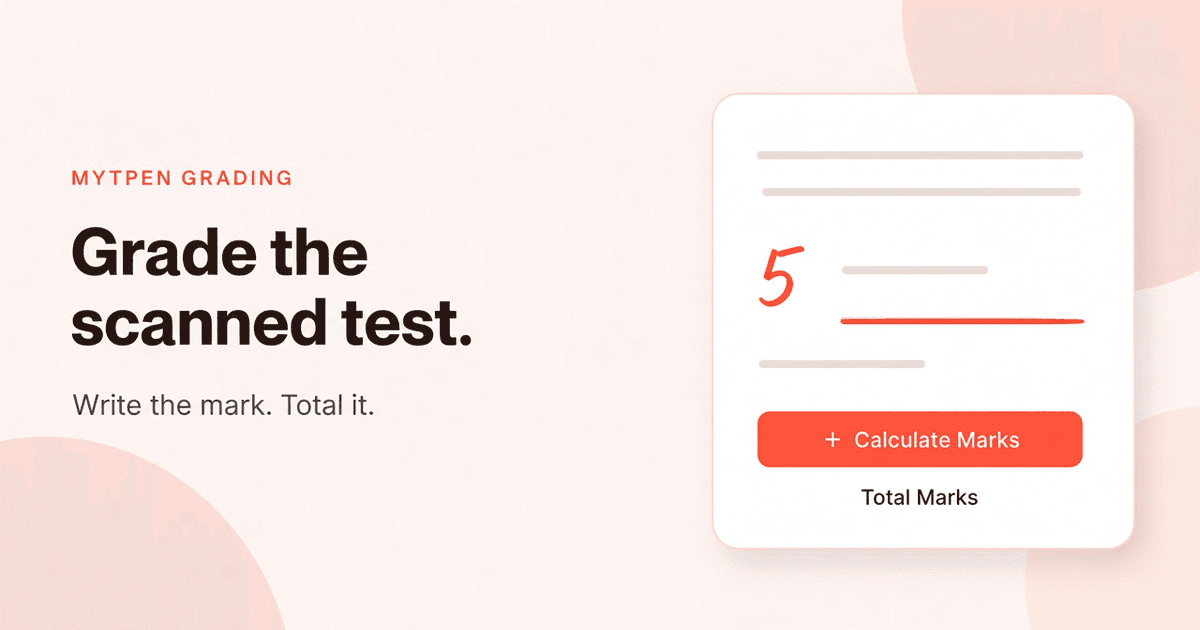
- Click "+ Calculate Marks". The score totals, and "Total Marks" appears at the bottom of the last page. Change a mark, including a minus in front of one, and calculate again. The total updates.
- Use the download icon on the top bar to download or export the graded work.
The sample file is demo_english, a page of handwritten English literature timeline notes. The scanned writing stays on the page while the marks go on it.
The left toolbar also has Select, Eraser, Undo, and Redo, for a stroke you want to move, remove, or bring back.
The two pens on the page#
Tpen is the pen for the score. You write the mark the way you would in the margin of a paper test, and the handwriting becomes a digital number on the page.
Plus, minus, and decimal are the operators. A whole mark is the number you write. A decimal is there when the mark is not a whole number. A minus in front of a mark makes that mark a deduction, so a point taken off sits on the page with the answer it belongs to.
Cpen is the pen for the feedback. A strikethrough stays a strikethrough. An underline stays an underline. The note sits on the line it is about, in your handwriting, so the student can see the mark and the place you marked.
| Pen | What you put on the page |
|---|---|
| Tpen | The mark, converted into a digital number. Plus, minus, and decimal. |
| Cpen | The feedback. Strikethroughs and underlines stay as handwriting. |
Select moves you around the page when a mark belongs further down. Eraser takes a stroke off. Undo and Redo step back through the last marks, which is how you correct a number you wrote in the wrong place.
Grade handwritten answer sheets online#
A handwritten answer sheet is a PDF once it comes off the copier. Grade handwritten answer sheets online by uploading that PDF and writing on the scan. demo_english, the sample, is handwritten English literature timeline notes. The student's handwriting stays visible. Your marks go on the same page.
The number on the page is the number you wrote with Tpen. The comment is the ink from Cpen. Total Marks sits at the bottom of the last page.
Grade a PDF assignment#
Upload a scanned assignment, a test, or any document in PDF format. A PDF assignment uses the same box as a test.
Drop the file on "Upload or drag and drop your file here". "Choose from device" takes it from the computer in front of you. "Start with sample file" opens a page so you can try the pens before your own stack is uploaded. Import from Google Drive, myTpen DRIVE, Dropbox, or OneDrive when the PDF already lives there. "Exit the tour" takes you back to the file when "Let's get started!" is open.
Once the PDF is open, you are on the scanned page, with the toolbar on the left and a download icon on the top bar. The marks, the notes, and the total land on that paper.
Auto-calculate the test marks#
"+ Calculate Marks" totals the marks on the page in one click. "Total Marks" is the label at the bottom of the last page, so the score sits at the end of the paper the way a circled total does.
When a mark should change, change it on the page. A minus added in front of a mark makes that mark a deduction. Click "+ Calculate Marks" again. The total updates to the marks that are on the page now.
You still write each mark, with plus, minus, or a decimal. The adding is the part the button does, and it does it again after you edit a mark. That is how you grade scanned assignments and tests without manual calculation.
Digital grading for teachers#
Digital grading for teachers is the paper you collected, marked with the two pens. You decide every mark. The total comes from the marks on that page, and Cpen leaves the note on the answer.
Grade on a pen tablet#
Handwriting wants a pen. If you are not on a touch device, connect a myTpen Surface pen tablet or a Wacom pen tablet for a better handwriting experience. Those tablets are available from the myTpen E-Store.
Grade on a pen tablet when the marks and the comments should feel like the writing you already do on paper. Mark papers with a stylus the same way: Tpen for the number, Cpen for the note. On a touch device, write with the pen in your hand. On a computer without a touch screen, use a myTpen Surface or a Wacom tablet from the E-Store.
Where Grading sits next to the other workflows#
Grading is the page you mark. The other workflows are for a different moment in the same week.
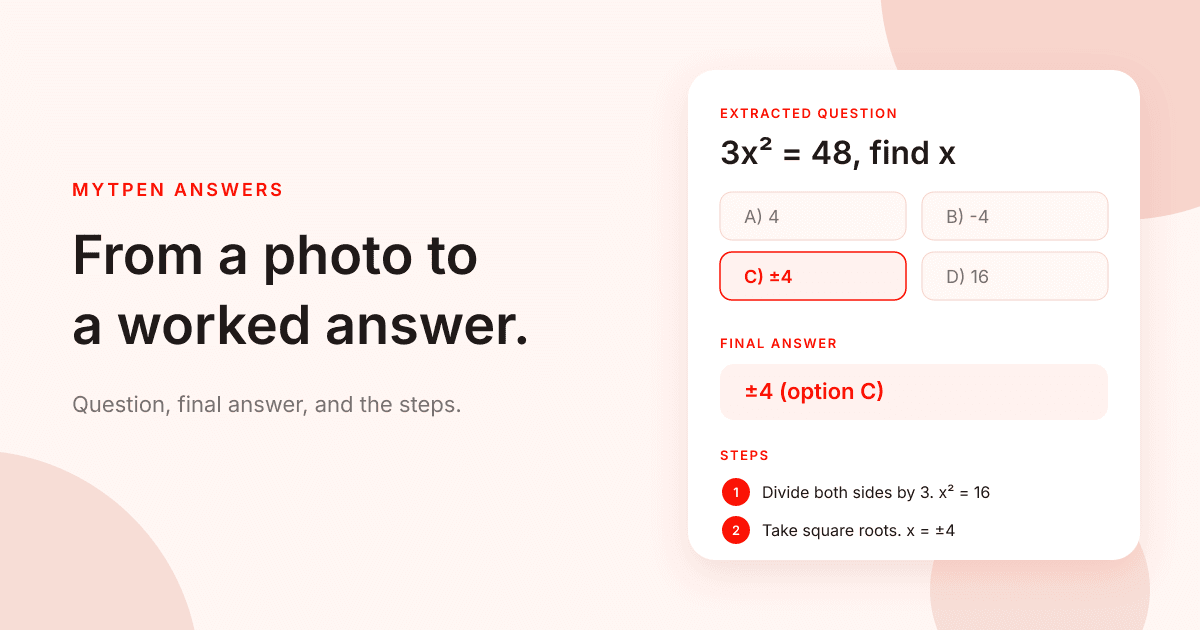
Data Extract copies text out of a PDF question paper, with a word count and a confidence score you proofread before you reuse a question. The guide is How to Extract Text from a PDF Question Paper. Answers reads a question from a photo and returns a final answer and the steps, which is how a key gets written before you mark. The guide is How to Make an Answer Key from a Photo. Lessons plays a narrated video from a topic, and you can export that lesson as a PDF. The guide is How to Turn Any Topic into a Narrated Video Lesson in Minutes. Board keeps a lesson on pages you can share as a PNG or SVG. The guide is How to Teach a Lesson on a Multi-Page Whiteboard.
Mark the scanned test in Grading when the paper is already written and the marks are yours to give. They are workflows in The EdTech Operating System. More writing for teachers is in the Knowledge Hub. Account questions are on the FAQ, and support is there if something blocks you.
Where it fits in your workflow#
Grading belongs to Handwritten Exam Assessment. Students submit descriptive answers, you allocate the scores, and the gradebook is saved with the class records.
- In Exams, create a Document type exam for descriptive answers.
- Students register and submit their answer PDFs.
- Grading is where you grade the submissions and allocate the scores.
- Export the gradebook as Excel.
- Save the gradebook to Drive.
The scores you allocate become the gradebook, and Drive keeps it. That is Handwritten Exam Assessment in The EdTech Operating System.
Frequently asked questions#
How do you grade a scanned test?#
Upload the PDF, write the marks with Tpen, annotate the mistakes with Cpen, and click "+ Calculate Marks". Total Marks appears at the bottom of the last page. You grade the scanned assignment without adding the column by hand.
How do you grade handwritten answer sheets online?#
Scan the sheet to a PDF and upload it. The sample, demo_english, is handwritten English literature timeline notes. Write the marks on that page with Tpen. The handwriting of the mark becomes a digital number.
How do you grade a PDF assignment?#
Upload the PDF of a scanned assignment, a test, or any document. Drag the file onto the box, choose it from your device, start with the sample file, or import it from Google Drive, myTpen DRIVE, Dropbox, or OneDrive.
How do you auto-calculate test marks?#
Write the marks with Tpen. Plus, minus, and decimal are the operators, and a minus in front of a mark is a deduction. Click "+ Calculate Marks". The total is labeled Total Marks at the bottom of the last page. Change a mark and click the button again, and the total updates.
How do you mark papers with a stylus?#
Use Tpen for the mark and Cpen for the comment. If you are not on a touch device, connect a myTpen Surface pen tablet or a Wacom pen tablet from the myTpen E-Store.
How myTpen Grading works as an AI grading tool for teachers#
myTpen Grading uses handwriting recognition so the marks you write by hand with Tpen become digital numbers instantly. Tpen supports plus, minus, and decimals. Calculate Marks totals the paper in one click. You stay in control of every mark, and the AI removes the manual adding-up.
Can you grade on a pen tablet?#
Yes. A myTpen Surface pen tablet or a Wacom pen tablet gives you a better handwriting experience when you are not on a touch device. Both are available from the myTpen E-Store.
Which app do you use after Grading?#
Export the gradebook as Excel, then save it to Drive.
What we mean by a mighty teacher#
The mission is to make teachers mighty again. Grade faster, provide better feedback, and focus on teaching. You're not average anymore. You are a mighty teacher. Mighty, here, is practical. The mark is still your handwriting, the note is still on the answer, and the total is calculated from the marks on the page.
We built workflows, not apps. You upload the PDF, write the marks, and teach. myTpen is backed by Google and partnered with Coursera. The paper stays yours, and so does the mark.
Become mighty again.
Try it on the test you just scanned#
Pick the PDF from the copier. Open myTpen Grading. Upload the file, write the first mark with Tpen, annotate what the student should see with Cpen, and click "+ Calculate Marks" when the page is marked.
Create a free account at mytpen.app.
Create a free account
Open myTpen and start with the workflow you need before the next class. Pricing is not listed publicly.
Create a free account