How to Use a Text to Handwriting Converter
Use a text to handwriting converter in myTpen Handwriting. Type or paste notes, preview natural writing on lined paper, and download a PDF for the class.
myTpen Team11 min read
- Handwriting
- Teaching
- Notes
- Workflows
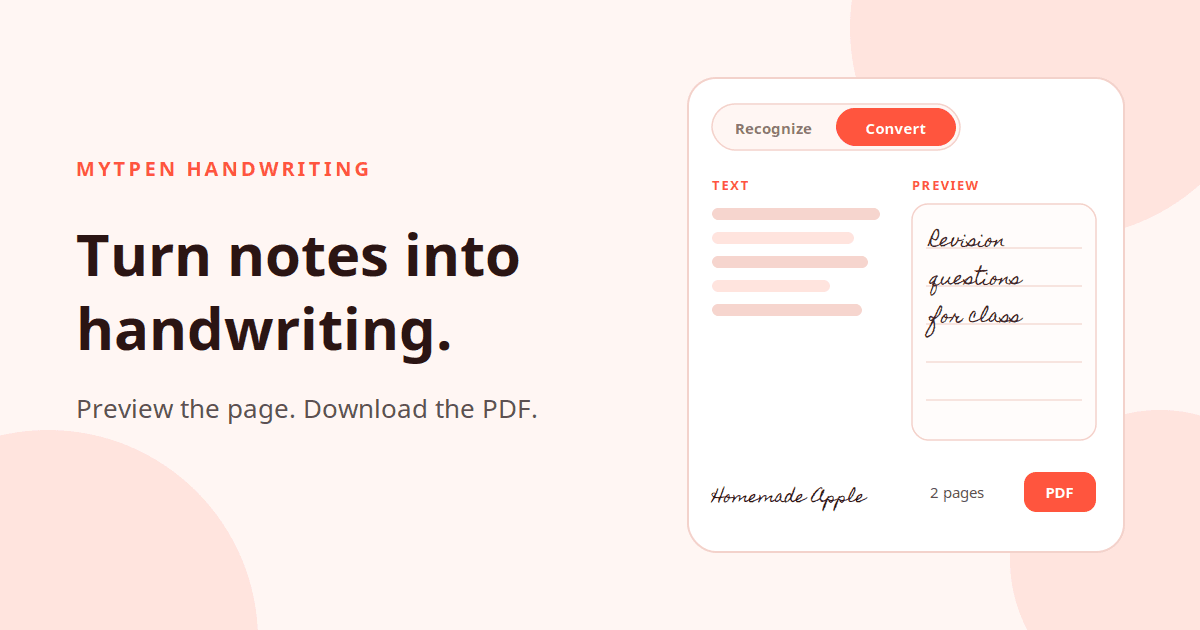
The worksheet is already typed, and the class still settles when the page looks written by hand. Lining up a script and fixing the spacing takes the evening you meant to spend on the lesson. This guide is how to use a text to handwriting converter when the words are ready and the page should look like handwriting on lined paper. myTpen Handwriting is the workflow for that job. You type or paste on the left, and the preview writes the page on the right.
This is for the teacher doing that work herself, including the many women who still recopy a worksheet after the school day is already over.
What a text to handwriting converter is for#
A text to handwriting converter turns digital text into a page that looks written. You want the notes, the worksheet, the assignment, or the classroom page in a hand the class can read, on lined paper, as a PDF you can print or send.
myTpen Handwriting is a web app with two modes on a toggle at the top: Recognize and Convert. Convert writes the page from text you already have. Recognize reads what you write. You move the toggle when the job changes.
myTpen is where we build academic workflows for teachers. We built workflows, not apps. myTpen is The EdTech Operating System. The same digital-ink technology powers Grading and Board. It brings handwriting recognition to teachers without needing the Apple ecosystem. The product page is Handwriting.
Sign up for a free myTpen account and open myTpen Handwriting with the notes in front of you. Other guides live in the Knowledge Hub.
How to use the text to handwriting converter#
Watch it once, then make the page for the class you are preparing with myTpen Handwriting.
Convert is a split screen. The text you type or paste sits on the left. The Preview on the right renders it as natural handwriting on lined paper.
- Sign up for a free myTpen account if you are new here. Open myTpen Handwriting.
- Set the toggle at the top to Convert.
- Type or paste the digital text on the left. Notes, a worksheet, an assignment, or another classroom page all start in that box.
- Choose a handwriting font. Homemade Apple is one of the fonts you can select. The Preview on the right updates as natural handwriting on lined paper.
- Read the page count on the preview, so you know how many sheets the class will get.
- Download the preview as a PDF.
Change a sentence on the left and the handwriting on the right follows. The PDF is the page you print or send, in the font you chose.
How to convert handwriting to text#
Recognize is the other mode on the same toggle. You convert handwriting to text by writing it, and the typed line appears while the pen is still in your hand.
- Set the toggle at the top to Recognize.
- Open the language dropdown on the Recognition Result panel and choose the language you are writing.
- Write on the blank canvas with a pen or stylus. The handwriting turns into typed text in real time in the Recognition Result panel above the canvas. "Photosynthesis is a" appears as you write.
- Use Undo, Redo, and Clear on the canvas when a stroke should come back, go forward, or leave the page.
- Click Copy. The text is copied to the clipboard. Click Export to download the text or export it as a PDF.
Copy is the path into the document you already keep. Export is the file when the note should travel on its own.
Real-time handwriting recognition on the canvas#
Real-time handwriting recognition is what Recognize is doing while you write. The Recognition Result panel, above the canvas, fills in as the strokes land. You write the phrase the class just asked about, glance up, and the typed words are already there to copy.
Undo takes a stroke back. Redo returns it. Clear gives you a fresh canvas when the next question is a new note. The language dropdown sits on that same result panel, so the read matches the script in your hand. Copy and Export stay beside it, for the moment the sentence is the one you want to keep.
Handwritten notes to text for teachers#
Handwritten notes to text for teachers is the job after the board is full. You taught the point by writing it. The class needs the same point as text they can search, and you need it in the file you keep for next week.
Write the note on the canvas in Recognize. Read it in the Recognition Result panel. Click Copy and paste it into the document for that chapter, or click Export and keep the text or the PDF with the lesson.
The app works on touch devices, with a pen or a stylus. On a laptop or desktop, connect a pen tablet such as a Wacom for the best writing experience. The myTpen Surface pen tablet is coming in 2027. If the notes already exist as digital text, switch the toggle to Convert, paste them, and let the preview put them back into a hand on lined paper.
A handwriting worksheet maker for the page you hand out#
Use Convert as a handwriting worksheet maker when the worksheet should look written, and the class should meet the questions in that hand. Type the prompts on the left. Pick the font. Read the Preview on lined paper. Check the page count. Download the PDF and print the copies.
A short revision sheet works the same way as a longer assignment. The prompts stay the words you typed. The page the student receives is handwriting on lines. Notes, worksheets, assignments, and other classroom materials all leave as that PDF. When a question needs a clearer verb, change it on the left and download again.
A handwriting to text converter online, in more than 10 languages#
myTpen Handwriting is a handwriting to text converter online, and it is a text to handwriting converter in the same place. You open it in the browser. Recognize reads the writing. Convert writes the page.
The language dropdown on the Recognition Result panel carries more than 10 languages: English, Chinese, Japanese, Korean, Hindi, Arabic, Russian, Spanish, French, German, Italian, Telugu, Malayalam, and Thai. Choose the language that matches the writing on the canvas. A Hindi note and an English note are the same canvas, with a different choice in the dropdown.
A multilingual classroom uses that list in both directions. In Recognize, write the explanation in the language of the lesson and copy the typed text. In Convert, paste the text you already have and hand out a page in a handwriting font. When a language you teach is not in the dropdown yet, you can request it.
STEM notes and the page students copy#
STEM notes belong on both sides of the toggle. In Recognize, write the line as you would on the board, and Copy gives you the typed sentence for the file you keep. In Convert, paste the explanation you already typed, choose the font, and download a handwritten page the class can copy onto their own lines. Typed notes from board work are the first path. Quick worksheets in a handwriting style are the second. The prompts are yours, the hand is the font, and the PDF is what you print.
Where Handwriting sits with Grading and Board#
Grading and Board use the same engine for a different moment in the week.
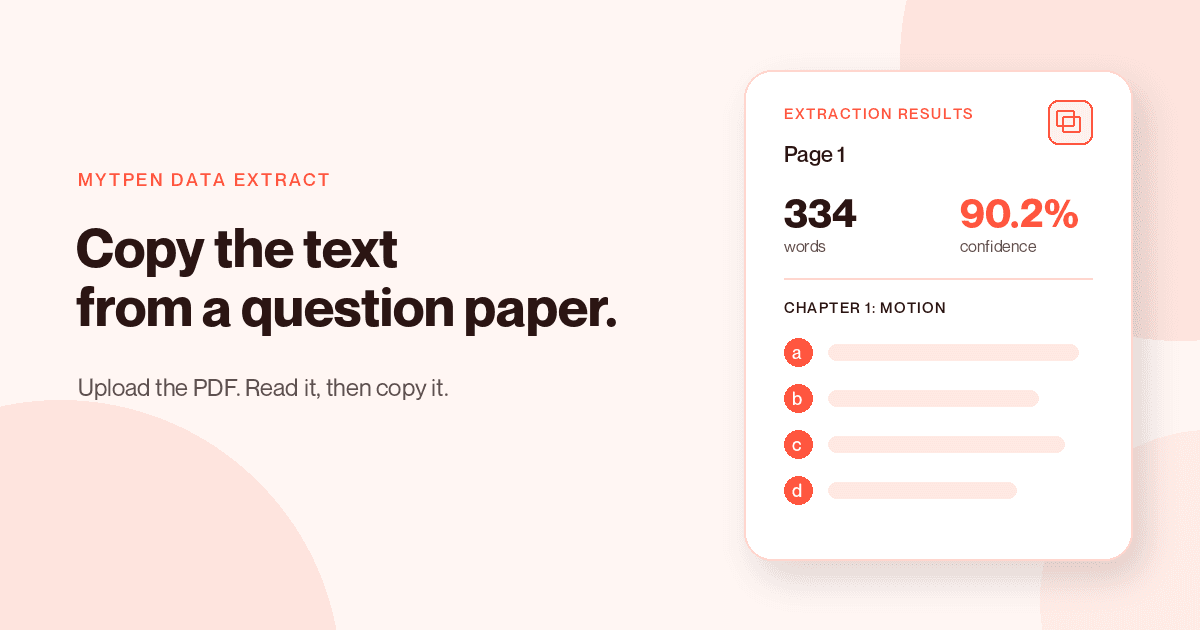
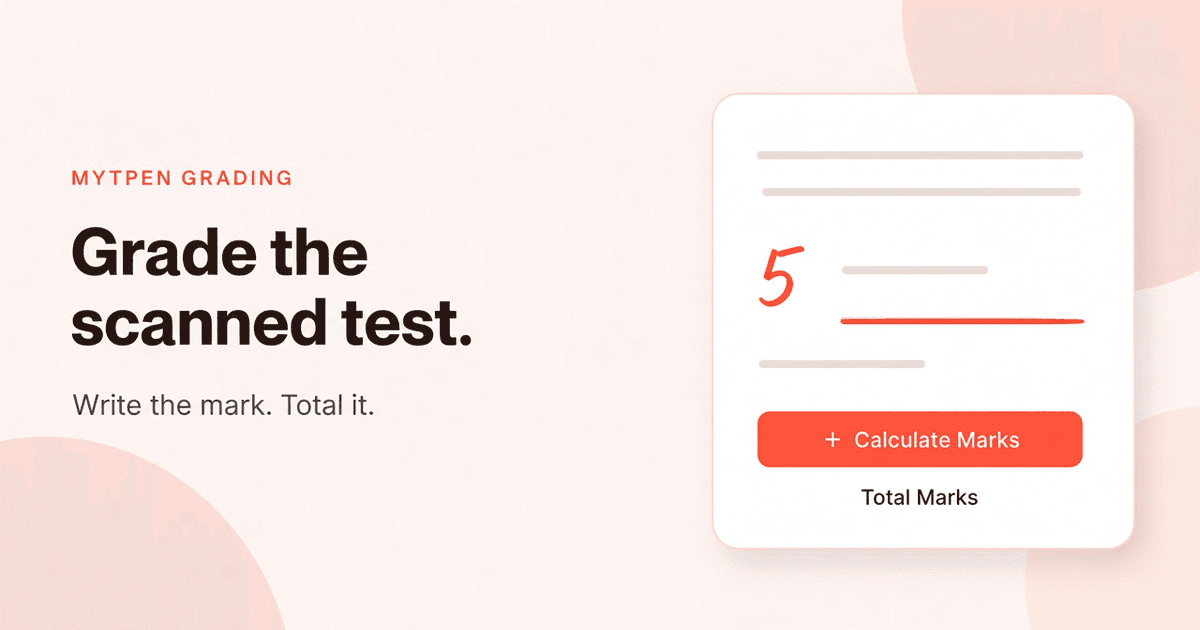
In Grading, you write the mark on a scanned test and the handwriting becomes the number on the page. The guide is How to Grade a Scanned Test. On Board, you keep a lesson across pages and share it when the period ends. The guide is How to Teach a Lesson on a Multi-Page Whiteboard. Data Extract copies a question paper or a set of notes into text you can reuse. The guide is How to Extract Text from a PDF Question Paper.
They are workflows in The EdTech Operating System. More writing for teachers is in the Knowledge Hub. Account questions are on the FAQ, and support is there if a step blocks you.
Where it fits in your workflow#
myTpen Handwriting belongs to Document & Learning Material. A page you already have as text becomes a handwritten page you can hand out. Extract copies the words. Text to Handwriting writes them out. You merge the PDFs when the set should travel as one file.
Document & Learning Material runs in this order.
- Data Extract takes the text from a PDF or an image. Handwriting is supported.
- Copy the content.
- Text to Handwriting turns it into handwritten-style learning materials. That is Convert in myTpen Handwriting: paste the text, choose the font, and download the PDF.
- Merge the PDFs.
The same digital-ink engine powers Grading, where the mark you write becomes the number on a scanned test, and Board, where the lesson stays in the handwriting you teach with. Handwriting opens that engine as Recognize and Convert.
The product page is Handwriting. This workflow ends when the handwritten PDF is in the set you merge. That is Document & Learning Material in The EdTech Operating System.
Frequently asked questions#
How do you use a text to handwriting converter?#
Open myTpen Handwriting and set the toggle at the top to Convert. Type or paste the digital text on the left, and choose a handwriting font such as Homemade Apple. The Preview on the right renders it as natural handwriting on lined paper, shows the page count, and downloads as a PDF.
How do you convert handwriting to text?#
Set the toggle to Recognize and write on the blank canvas with a pen or stylus. The handwriting turns into typed text in real time in the Recognition Result panel above the canvas. Click Copy to put the text on the clipboard, or click Export to download the text or export it as a PDF.
What does real-time handwriting recognition look like while you write?#
The Recognition Result panel fills in as the strokes land. A line such as "Photosynthesis is a" appears above the canvas while you are still writing. Undo, Redo, and Clear sit on the canvas for a stroke you want to take back, restore, or remove.
Which languages does the handwriting to text converter online include?#
The language dropdown includes English, Chinese, Japanese, Korean, Hindi, Arabic, Russian, Spanish, French, German, Italian, Telugu, Malayalam, and Thai. That is more than 10 languages. Teachers can request a language that is not supported yet.
How do handwritten notes to text for teachers leave the canvas?#
Write the note in Recognize, then click Copy to paste it into the document you keep, or click Export to download the text or export it as a PDF. On a touch device, write with a pen or stylus. On a laptop or desktop, connect a pen tablet such as a Wacom. The myTpen Surface pen tablet is coming in 2027.
Can you use it as a handwriting worksheet maker?#
Yes. In Convert, type or paste the worksheet, choose the handwriting font, and read the Preview on lined paper. Check the page count and download the PDF. Notes, assignments, and other classroom materials use the same steps.
Where does Text to Handwriting sit after Data Extract?#
Document & Learning Material runs from Data Extract, to a copy of the text, to Text to Handwriting, to merged PDFs. Paste the extracted text into Convert and download the handwritten PDF. The same engine powers Grading and Board.
What should you open on a laptop that has no touch screen?#
Connect a pen tablet such as a Wacom and write in Recognize with that pen. Convert takes typed or pasted text on the left, and the preview downloads as a PDF. The myTpen Surface pen tablet is coming in 2027.
What we mean by a mighty teacher#
The mission is to make teachers mighty again. You're not average anymore. You are a mighty teacher. Mighty, here, is practical. The note you wrote on the board can leave as typed text, and the worksheet you already typed can leave as a page in a human hand.
We built workflows, not apps. You choose Recognize or Convert, and the page follows. myTpen is backed by Google and partnered with Coursera. The class stays yours, and so does the page they read.
Become mighty again.
Make the page the class will actually read#
Pick the notes you were about to recopy by hand. Open myTpen Handwriting. Set the toggle to Convert, paste the text, choose the font, and download the PDF. When the point is still in the pen, set the toggle to Recognize and write it.
Create a free account
Open myTpen and start with the workflow you need before the next class.
Create a free account